> For the complete documentation index, see [llms.txt](https://docs.bindplane.com/llms.txt). Markdown versions of documentation pages are available by appending `.md` to page URLs; this page is available as [Markdown](https://docs.bindplane.com/integrations/destinations/statsig.md).
# Statsig
Exports logs and metrics from a Bindplane pipeline to [Statsig](https://www.statsig.com/) over OTLP HTTP. Telemetry is sent JSON-encoded to the Statsig ingestion endpoint and authenticated with a Statsig API key. Traces are not supported.
### Supported Telemetry Types
| Platform | Metrics | Logs | Traces |
| ------------------ | ------- | ---- | ------ |
| Linux | ✓ | ✓ | |
| Windows | ✓ | ✓ | |
| macOS | ✓ | ✓ | |
| Kubernetes Node | ✓ | ✓ | |
| Kubernetes Cluster | ✓ | ✓ | |
| Kubernetes Gateway | ✓ | ✓ | |
| OpenShift Node | ✓ | ✓ | |
| OpenShift Cluster | ✓ | ✓ | |
| OpenShift Gateway | ✓ | ✓ | |
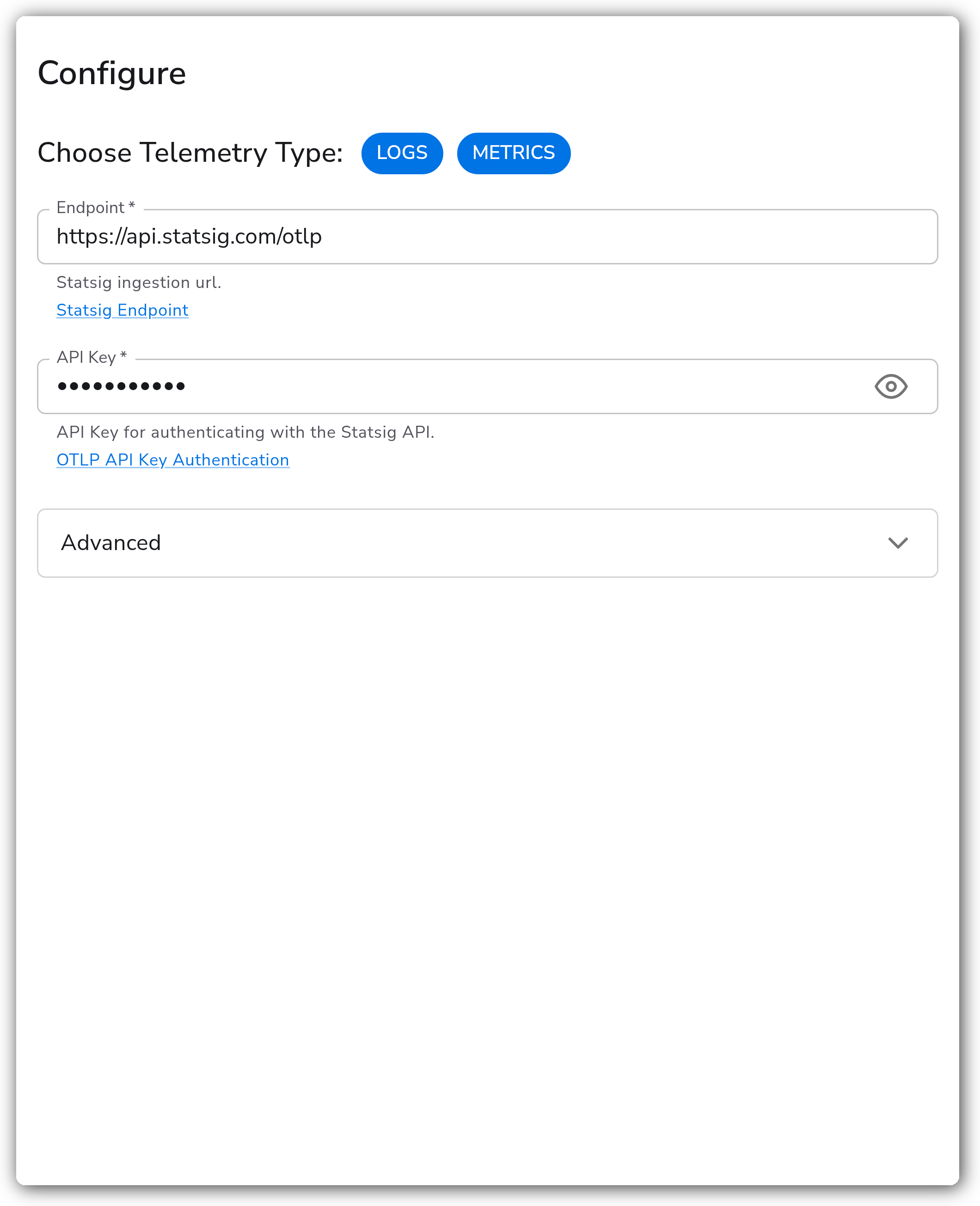
Use **Choose Telemetry Type** to select which of Logs and Metrics this destination exports. Both are enabled by default.
### Prerequisites
You need:
* A [Statsig](https://www.statsig.com/) account.
* The Statsig OTLP ingestion endpoint. The default is `https://api.statsig.com/otlp`.
* A Statsig API key. Statsig authenticates OTLP requests with a Server SDK Secret Key passed in the `statsig-api-key` header. Create one in the Statsig Console under **Settings > Keys & Environments**.
* Network connectivity from the collector to the Statsig endpoint over HTTPS.
For the endpoint, authentication, and OTLP export details, see the [Statsig OpenTelemetry documentation](https://docs.statsig.com/server/concepts/open_telemetry).
### Configuration
**Connection**
| Parameter | Type | Required | Default | Description |
| --------------------- | ------------------ | -------- | ------------------------------ | ----------------------------------------------------------------------------------------------- |
| Choose Telemetry Type | Telemetry Selector | No | Logs, Metrics | Which signals this destination exports. Valid values: Logs, Metrics. |
| Endpoint | String | Yes | `https://api.statsig.com/otlp` | Statsig OTLP HTTP ingestion URL. |
| API Key | String | Yes | *(empty)* | API key for authenticating with Statsig, sent in the `statsig-api-key` header. Sensitive value. |
**Advanced**
| Parameter | Type | Required | Default | Description |
| ---------------- | ------- | -------- | ------- | ---------------------------------------------------------------------------------------------------------- |
| Timeout | Integer | Yes | `30` | Timeout in seconds for sending a batch to the destination. |
| Drop Raw Copy | Boolean | No | `true` | When enabled, the raw copy of the log stored in `log.record.original` is dropped before export. Logs only. |
| Compression Type | Enum | No | `gzip` | Compression used for sending telemetry. Valid values: `gzip`, `none`. |
**Retry on Failure**
| Parameter | Type | Required | Default | Description |
| ----------------------- | ------- | -------- | ------- | ---------------------------------------------------------------------------------------------------------------------------------------------- |
| Enable Retry on Failure | Boolean | No | `true` | Attempt to resend telemetry that failed to transmit. |
| Initial Interval | Integer | No | `5` | Time in seconds to wait after the first failure before retrying. Applies when retry on failure is enabled. |
| Max Interval | Integer | No | `30` | Upper bound in seconds on the retry backoff. Applies when retry on failure is enabled. |
| Max Elapsed Time | Integer | No | `300` | Maximum time in seconds spent retrying a batch before giving up, to avoid a never-ending retry loop. Applies when retry on failure is enabled. |
**Sending Queue**
| Parameter | Type | Required | Default | Description |
| ------------------------- | --------- | -------- | ------------------------------- | --------------------------------------------------------------------------------------------------------------------------------------------------------------------------------------------------------------------------------------- |
| Enable Sending Queue | Boolean | No | `true` | Buffer telemetry temporarily before sending to help avoid loss during a temporary network outage. |
| Number of Consumers | Integer | No | `10` | Number of consumers that dequeue batches. Applies when the sending queue is enabled. |
| Queue Size | Integer | No | `5000` | Maximum number of batches kept in memory before dropping. Applies when the sending queue is enabled. |
| Enable Persistent Queuing | Boolean | No | `true` | Buffer telemetry to disk before sending to help avoid loss during network outages or collector restarts. Applies when the sending queue is enabled. |
| Persistent Queue Storage | Extension | Yes | `file_storage_persistent_queue` | Storage extension used for the persistent queue. Applies when the sending queue and persistent queuing are enabled. See [persistent queue storage](https://docs.bindplane.com/configuration/bindplane-otel-collector/persistent-queue). |
### Examples
This example exports both logs and metrics to Statsig with gzip compression, retry on failure, and a disk-backed sending queue for durability.
```yaml
apiVersion: bindplane.observiq.com/v1
kind: Destination
metadata:
name: statsig
spec:
type: statsig
parameters:
- name: telemetry_types
value:
- Logs
- Metrics
- name: endpoint
value: https://api.statsig.com/otlp
- name: api_key
value:
- name: compression
value: gzip
- name: timeout
value: 30
- name: retry_on_failure_enabled
value: true
- name: sending_queue_enabled
value: true
- name: persistent_queue_enabled
value: true
```
### Configuration Tips
* Keep the API key out of source control. Reference it from an environment variable or a secret manager rather than hardcoding the value.
* Leave Compression Type at `gzip` to reduce egress bandwidth. Switch to `none` only when collector CPU is the bottleneck and latency matters more than bandwidth.
* Keep the sending queue and persistent queuing enabled for production. The persistent queue survives collector restarts and short outages, preventing data loss when Statsig is briefly unreachable.
### Troubleshooting
#### Authentication failures
**Symptom**: Exports are rejected with 401 or 403 errors and no telemetry reaches Statsig.
**Solution**: Verify the API Key is a valid Statsig Server SDK Secret Key and that it is sent in the `statsig-api-key` header (Bindplane sets this automatically from the API Key parameter). Confirm the key has not been revoked in the Statsig Console under **Settings > Keys & Environments**, and regenerate it if needed.
#### Endpoint unreachable or timing out
**Symptom**: Connection refused or timeout errors in the collector logs, no data in Statsig.
**Solution**: Confirm the Endpoint is correct (default `https://api.statsig.com/otlp`) and reachable from the collector over HTTPS. Check firewall and DNS, then increase Timeout if batches are large and the network is slow.
#### Dropped telemetry under load
**Symptom**: The sending queue fills and telemetry is dropped, or data is lost after a collector restart.
**Solution**: Increase Queue Size and Number of Consumers to drain batches faster, and enable Persistent Queuing so buffered data survives restarts. Keep Retry on Failure enabled to ride out transient errors and HTTP 429 throttling.
### Standalone Destination
```yaml
apiVersion: bindplane.observiq.com/v1
kind: Destination
metadata:
name: statsig
spec:
type: statsig
parameters:
- name: telemetry_types
value:
- Logs
- Metrics
- name: endpoint
value: https://api.statsig.com/otlp
- name: api_key
value:
```
### Related Resources
* [OTLP HTTP Exporter (otlphttpexporter)](https://github.com/open-telemetry/opentelemetry-collector/tree/main/exporter/otlphttpexporter)
* [Statsig OpenTelemetry documentation](https://docs.statsig.com/server/concepts/open_telemetry)
---
# Agent Instructions
This documentation is published with GitBook. GitBook is the documentation platform designed so that both humans and AI agents can read, navigate, and reason over technical content effectively. Learn more at gitbook.com.
## Querying This Documentation
If you need additional information that is not directly available in this page, you can query the documentation by asking a question.
Perform an HTTP GET request on the following URL with the `ask` and `goal` query parameters:
```
GET https://docs.bindplane.com/integrations/destinations/statsig.md?ask=&goal=
```
`ask` is the immediate question: it should be specific, self-contained, and written in natural language.
`goal` is what the user is ultimately trying to achieve, the reason they need the answer. Sharing it helps GitBook give you a better, more relevant answer. A goal is most helpful when it describes the outcome the user wants rather than restating the question. For example, with `ask=how do I create an API token`, a goal like `automate deployments from our CI pipeline` lets GitBook tailor the answer to that use case.
The response will contain a direct answer to the question and relevant excerpts and sources from the documentation.
Use this mechanism when the answer is not explicitly present in the current page, you need clarification or additional context, or you want to retrieve related documentation sections.