> For the complete documentation index, see [llms.txt](https://docs.bindplane.com/llms.txt). Markdown versions of documentation pages are available by appending `.md` to page URLs; this page is available as [Markdown](https://docs.bindplane.com/integrations/destinations/clickstack.md).
# ClickStack
The ClickStack destination exports logs, metrics, and traces from a Bindplane pipeline to [ClickStack](https://clickhouse.com/clickstack), the ClickHouse observability stack (HyperDX UI, OpenTelemetry collector, and ClickHouse). Telemetry is sent to the ClickStack OTLP endpoint over HTTP or gRPC, authenticated with an ingestion API key.
### Supported Telemetry Types
| Platform | Metrics | Logs | Traces |
| ------------------ | ------- | ---- | ------ |
| Linux | ✓ | ✓ | ✓ |
| Windows | ✓ | ✓ | ✓ |
| macOS | ✓ | ✓ | ✓ |
| Kubernetes Node | ✓ | ✓ | ✓ |
| Kubernetes Cluster | ✓ | ✓ | ✓ |
| Kubernetes Gateway | ✓ | ✓ | ✓ |
| OpenShift Node | ✓ | ✓ | ✓ |
| OpenShift Cluster | ✓ | ✓ | ✓ |
| OpenShift Gateway | ✓ | ✓ | ✓ |
### Prerequisites
You need a reachable ClickStack OTLP endpoint and an ingestion API key.
* **A running ClickStack (HyperDX) deployment.** Either managed ClickStack on ClickHouse Cloud or a self-hosted/open-source deployment. The all-in-one open-source image exposes the OTLP collector on ports `4318` (HTTP) and `4317` (gRPC). See the [ClickStack getting started guide](https://clickhouse.com/docs/use-cases/observability/clickstack/getting-started).
* **Network connectivity** from the Bindplane collector to the ClickStack OTLP endpoint on the chosen port.
* **An ingestion API key.** ClickStack secures the OTLP endpoint with an auto-generated ingestion key that must be sent as an `authorization` header on every request. Find it in the HyperDX app under **Team Settings → API Keys**. See [Sending OTel data](https://clickhouse.com/docs/use-cases/observability/clickstack/ingesting-data/opentelemetry#sending-otel-data).
### Configuration
**Connection**
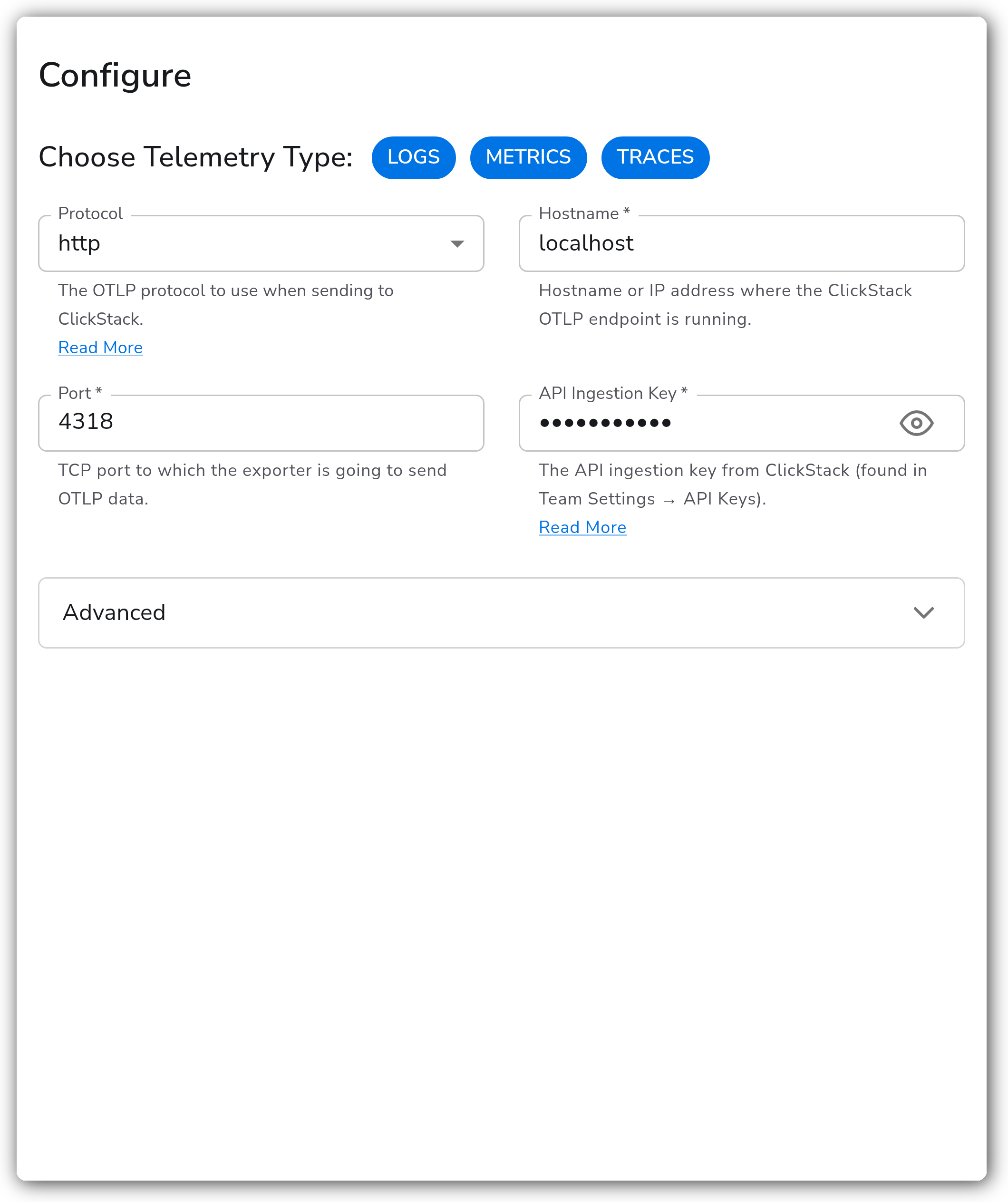
| Parameter | Type | Required | Default | Description |
| --------------------- | ------------------ | -------- | ---------------------------- | --------------------------------------------------------------------------------------------------------------------- |
| Choose Telemetry Type | Telemetry Selector | No | Logs, Metrics, Traces | Which signals this destination exports. |
| Protocol | Enum: http, grpc | No | `http` | The OTLP protocol used when sending to ClickStack. |
| Hostname | String | Yes | `localhost` | Hostname or IP address where the ClickStack OTLP endpoint is running. |
| Port | Integer | Yes | `4318` (http), `4317` (grpc) | TCP port the exporter sends OTLP data to. Shown as `4318` when Protocol is `http` and `4317` when Protocol is `grpc`. |
| API Ingestion Key | String (sensitive) | Yes | *(empty)* | The ingestion key from ClickStack, sent as the `authorization` header. Found in Team Settings → API Keys. |
**Advanced**
| Parameter | Type | Required | Default | Description |
| ------------------ | --------------------------------------------- | -------- | ------- | -------------------------------------------------------------------------------------------------------------------------------------- |
| Compression (HTTP) | Enum: none, gzip, deflate, snappy, zlib, zstd | No | `gzip` | Compression algorithm used when sending data over HTTP. Shown when Protocol is `http`. |
| Compression (gRPC) | Enum: none, gzip, snappy, zstd | No | `gzip` | Compression algorithm used when sending data over gRPC. The server must support the selected algorithm. Shown when Protocol is `grpc`. |
| Timeout | Integer | Yes | `10` | Timeout, in seconds, for sending batches to the destination. |
| Drop Raw Copy | Boolean | No | `true` | When enabled, the raw log copy stored in `log.record.original` is dropped before export. Logs only. |
**TLS**
| Parameter | Type | Required | Default | Description |
| --------------------------------- | ------- | -------- | --------- | ---------------------------------------------------------------------------------------------------------------------------------- |
| Enable TLS | Boolean | No | `false` | Whether to use TLS. |
| Skip TLS Certificate Verification | Boolean | No | `false` | Skip verification of the server's certificate. Shown when Enable TLS is on. |
| TLS Certificate Authority File | String | No | *(empty)* | Optional CA file used to validate the server's certificate. Shown when Enable TLS is on. |
| Server Name Override | String | No | *(empty)* | Optional virtual hostname indicating the server name requested by the client. Generally not required. Shown when Enable TLS is on. |
| Mutual TLS | Boolean | No | `false` | Whether to use client TLS authentication (mTLS). Shown when Enable TLS is on. |
| TLS Client Certificate File | String | Yes | *(empty)* | Path to the client certificate for mutual TLS. Shown when Enable TLS and Mutual TLS are on. |
| TLS Client Private Key | String | Yes | *(empty)* | Path to the client private key for mutual TLS. Shown when Enable TLS and Mutual TLS are on. |
**Batching**
| Parameter | Type | Required | Default | Description |
| ------------------- | -------- | -------- | ------- | -------------------------------------------------------------------------------------------------------------------------------------------- |
| Enable Batching | Boolean | No | `true` | Batch telemetry data before sending to the destination. |
| Send Batch Size | Integer | Yes | `8192` | Number of spans, metric data points, or log records after which a batch is sent regardless of the timeout. Shown when Enable Batching is on. |
| Send Batch Max Size | Integer | Yes | `0` | Upper limit of the batch size. `0` means no upper limit. Must be greater than or equal to Send Batch Size. Shown when Enable Batching is on. |
| Timeout | Duration | Yes | `200ms` | Time after which a batch is sent regardless of size, for example `2s`. Shown when Enable Batching is on. |
**Retry on Failure**
| Parameter | Type | Required | Default | Description |
| ----------------------- | ------- | -------- | ------- | ------------------------------------------------------------------------------------------------------------------ |
| Enable Retry on Failure | Boolean | No | `true` | Attempt to resend telemetry data that failed to transmit. |
| Initial Interval | Integer | No | `5` | Time, in seconds, to wait after the first failure before retrying. Shown when Enable Retry on Failure is on. |
| Max Interval | Integer | No | `30` | Upper bound, in seconds, on backoff. Shown when Enable Retry on Failure is on. |
| Max Elapsed Time | Integer | No | `300` | Maximum time, in seconds, spent trying to send a batch before giving up. Shown when Enable Retry on Failure is on. |
**Sending Queue**
| Parameter | Type | Required | Default | Description |
| ------------------------- | --------- | -------- | ---------------------------------------------------- | ------------------------------------------------------------------------------------------------------------------------------------- |
| Enable Sending Queue | Boolean | No | `true` | Buffer telemetry data in memory before sending to help avoid loss during temporary network outages. |
| Number of Consumers | Integer | No | `10` | Number of consumers that dequeue batches. Shown when Enable Sending Queue is on. |
| Queue Size | Integer | No | `5000` | Maximum number of batches kept in memory before dropping. Shown when Enable Sending Queue is on. |
| Enable Persistent Queuing | Boolean | No | `true` | Buffer telemetry data to disk to help avoid loss during network outages or collector restarts. Shown when Enable Sending Queue is on. |
| Persistent Queue Storage | Extension | Yes | File storage at `${OIQ_OTEL_COLLECTOR_HOME}/storage` | Storage extension used for the persistent queue. Shown when Enable Sending Queue and Enable Persistent Queuing are on. |
### Examples
#### End-to-end deployment: collect host logs and ship to ClickStack
This example stands up a complete pipeline. A self-hosted ClickStack runs locally, a Bindplane source reads host logs, and the ClickStack destination ships logs, metrics, and traces over OTLP HTTP.
**1. Run ClickStack (open-source all-in-one).** This exposes the HyperDX UI on `8080` and the OTLP collector on `4318` (HTTP) and `4317` (gRPC).
```bash
docker run -p 8080:8080 -p 4317:4317 -p 4318:4318 -p 9000:9000 \
docker.hyperdx.io/hyperdx/hyperdx-all-in-one
```
**2. Get the ingestion API key.** Open the HyperDX UI at `http://localhost:8080`, complete first-run setup, then go to **Team Settings → API Keys** and copy the ingestion key.
**3. Create the ClickStack destination.** The destination below sends all three signals over HTTP to the local endpoint with gzip compression.
```yaml
apiVersion: bindplane.observiq.com/v1
kind: Destination
metadata:
name: clickstack-local
spec:
type: clickstack
parameters:
- name: telemetry_types
value:
- Logs
- Metrics
- Traces
- name: protocol
value: http
- name: hostname
value: localhost
- name: http_port
value: 4318
- name: api_key
value:
- name: http_compression
value: gzip
```
**4. Add a source and apply the configuration.** Attach a source (for example, a File or Host source) and the ClickStack destination to a configuration, then roll the configuration out to a collector. Telemetry appears in the HyperDX search and dashboards once data flows.
#### gRPC with zstd compression for high-volume traffic
For collector-to-collector traffic on an internal network, gRPC with zstd compression reduces bandwidth and connection overhead.
```yaml
apiVersion: bindplane.observiq.com/v1
kind: Destination
metadata:
name: clickstack-grpc
spec:
type: clickstack
parameters:
- name: telemetry_types
value:
- Logs
- Metrics
- Traces
- name: protocol
value: grpc
- name: hostname
value: clickstack.internal.example.com
- name: grpc_port
value: 4317
- name: api_key
value:
- name: grpc_compression
value: zstd
```
### Configuration Tips
* **Match the port to the protocol.** HTTP defaults to `4318` and gRPC to `4317`. The all-in-one ClickStack image exposes both; confirm your deployment publishes the port you target.
* **Keep compression on for high volume.** Both protocols default to `gzip`. For gRPC, the ClickStack server must support the selected algorithm before switching to `zstd` or `snappy`.
* **Use the persistent queue for durability.** The sending queue and on-disk persistent queue are enabled by default, so batches survive temporary outages and collector restarts instead of being dropped.
### Troubleshooting
#### 401 Unauthorized or invalid credentials
**Symptom:** The collector logs authentication or `401` errors when exporting to ClickStack.
**Solution:** Verify the **API Ingestion Key** matches the value in HyperDX under **Team Settings → API Keys**, and confirm the key has not been rotated or revoked. The key is sent as the `authorization` header on every request.
#### Data exports without errors but does not appear in HyperDX
**Symptom:** No errors in the collector, but telemetry is missing from ClickStack.
**Solution:** Confirm the **Hostname** and **Port** point at the ClickStack OTLP endpoint for the chosen **Protocol**, and that the signals you expect are enabled under **Choose Telemetry Type**. Check that the ClickStack collector port is reachable from the collector host.
#### Connection refused or TLS handshake failures
**Symptom:** Connection refused, timeout, or certificate errors after enabling TLS.
**Solution:** If ClickStack is served over plain OTLP, leave **Enable TLS** off. When TLS is on, supply a **TLS Certificate Authority File** for a private CA, or enable **Skip TLS Certificate Verification** for testing only. For self-signed certificates with a mismatched hostname, set **Server Name Override**.
### Standalone Destination
```yaml
apiVersion: bindplane.observiq.com/v1
kind: Destination
metadata:
name: clickstack
spec:
type: clickstack
parameters:
- name: telemetry_types
value:
- Logs
- Metrics
- Traces
- name: protocol
value: http
- name: hostname
value: localhost
- name: http_port
value: 4318
- name: api_key
value:
```
### Related Resources
* [OTLP/HTTP Exporter (`otlphttpexporter`)](https://github.com/open-telemetry/opentelemetry-collector/tree/main/exporter/otlphttpexporter)
* [OTLP Exporter (`otlpexporter`)](https://github.com/open-telemetry/opentelemetry-collector/tree/main/exporter/otlpexporter)
* [ClickStack getting started guide](https://clickhouse.com/docs/use-cases/observability/clickstack/getting-started)
* [ClickStack OpenTelemetry ingestion](https://clickhouse.com/docs/use-cases/observability/clickstack/ingesting-data/opentelemetry#sending-otel-data)
---
# Agent Instructions
This documentation is published with GitBook. GitBook is the documentation platform designed so that both humans and AI agents can read, navigate, and reason over technical content effectively. Learn more at gitbook.com.
## Querying This Documentation
If you need additional information that is not directly available in this page, you can query the documentation by asking a question.
Perform an HTTP GET request on the following URL with the `ask` and `goal` query parameters:
```
GET https://docs.bindplane.com/integrations/destinations/clickstack.md?ask=&goal=
```
`ask` is the immediate question: it should be specific, self-contained, and written in natural language.
`goal` is what the user is ultimately trying to achieve, the reason they need the answer. Sharing it helps GitBook give you a better, more relevant answer. A goal is most helpful when it describes the outcome the user wants rather than restating the question. For example, with `ask=how do I create an API token`, a goal like `automate deployments from our CI pipeline` lets GitBook tailor the answer to that use case.
The response will contain a direct answer to the question and relevant excerpts and sources from the documentation.
Use this mechanism when the answer is not explicitly present in the current page, you need clarification or additional context, or you want to retrieve related documentation sections.