> For the complete documentation index, see [llms.txt](https://docs.bindplane.com/llms.txt). Markdown versions of documentation pages are available by appending `.md` to page URLs; this page is available as [Markdown](https://docs.bindplane.com/integrations/destinations/google-cloud-managed-service-for-prometheus.md).
# Google Cloud Managed Service for Prometheus
The Google Cloud Managed Service for Prometheus destination exports metrics from a Bindplane pipeline to [Google Cloud Managed Service for Prometheus](https://cloud.google.com/stackdriver/docs/managed-prometheus), Google Cloud's fully managed, multi-cloud store for Prometheus metrics. This destination sends metrics only.
### Supported Telemetry Types
| Platform | Metrics | Logs | Traces |
| ------------------ | ------- | ---- | ------ |
| Linux | ✓ | | |
| Windows | ✓ | | |
| macOS | ✓ | | |
| Kubernetes Node | ✓ | | |
| Kubernetes Cluster | ✓ | | |
| Kubernetes Gateway | ✓ | | |
| OpenShift Node | ✓ | | |
| OpenShift Cluster | ✓ | | |
| OpenShift Gateway | ✓ | | |
### Prerequisites
You need a Google Cloud project and credentials that allow the collector to write metrics:
* A **Google Cloud project**. Its project ID is set with the `Project ID` parameter, or detected from the credentials if left unset.
* A **service account** with the **Monitoring Metric Writer** role (`roles/monitoring.metricWriter`), which grants the `monitoring.timeSeries.create` permission required to write metric data. See [Control access with IAM](https://cloud.google.com/monitoring/access-control). Grant the role to the service account, not to a user account.
* **Network access** from the collector to the Cloud Monitoring API endpoint `monitoring.googleapis.com:443`. When the collector runs on a Google Cloud host, this is typically part of default network access.
When running inside Google Cloud with appropriate access scopes or an attached service account, the `auto` authentication method discovers credentials from the environment, and no service account key file is required. When running outside Google Cloud, create a service account, assign the Monitoring Metric Writer role, and download a JSON key. See [Create service accounts](https://cloud.google.com/iam/docs/service-accounts-create) and [Create and manage service account keys](https://cloud.google.com/iam/docs/keys-create-delete).
### Configuration
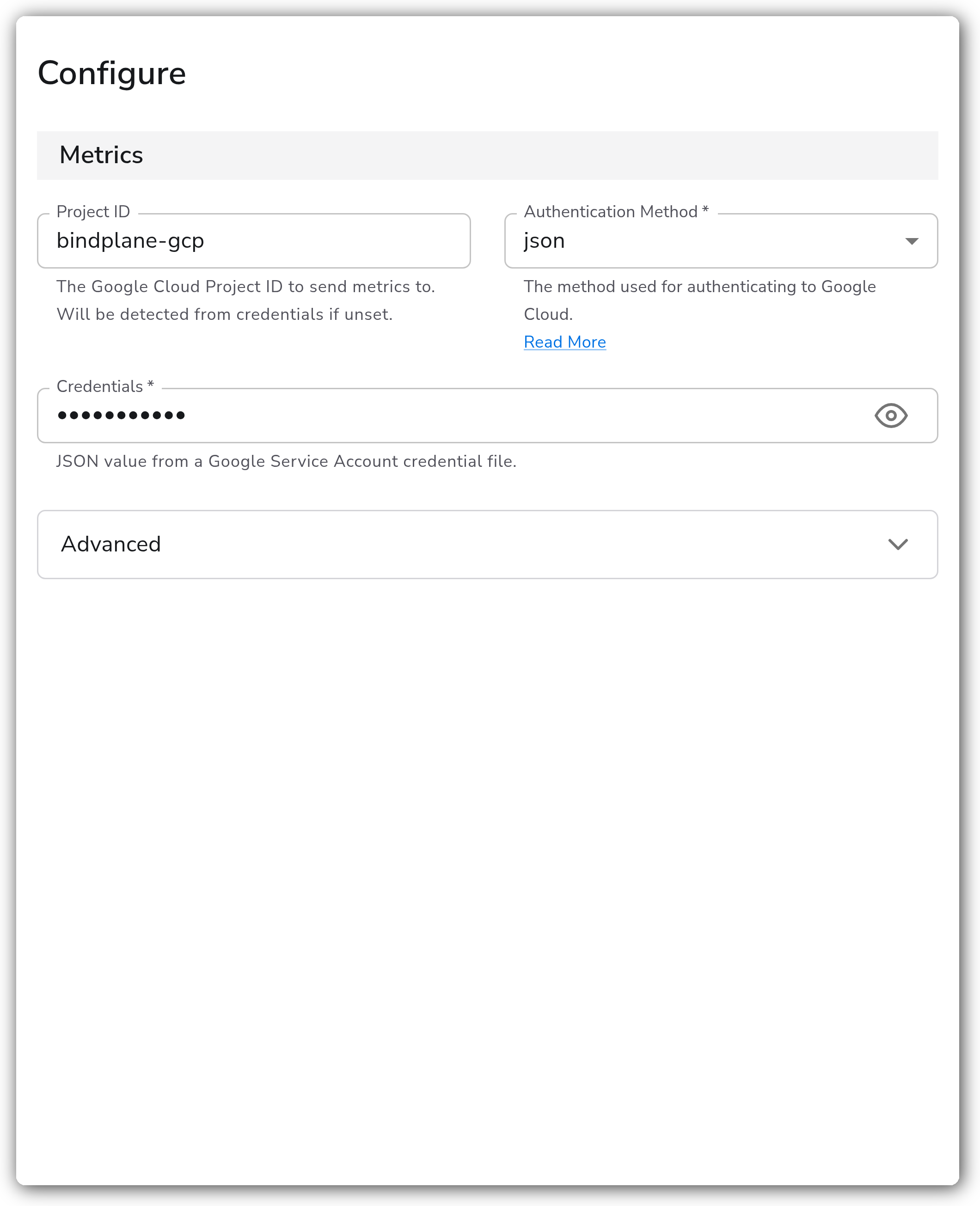
**Project and Authentication**
| Parameter | Type | Required | Default | Description |
| --------------------- | ---------------------- | -------- | --------- | ------------------------------------------------------------------------------------------------------------------------------------------------------------------------------------------ |
| Project ID | string | No | *(empty)* | The Google Cloud Project ID to send metrics to. Detected from credentials if unset. |
| Authentication Method | Enum: auto, json, file | Yes | auto | The method used for authenticating to Google Cloud.1 |
| Credentials | string (sensitive) | Yes | *(empty)* | JSON value from a Google Service Account credential file. Shown when Authentication Method is `json`. Stored as a sensitive value. |
| Credentials File | string | Yes | *(empty)* | Path to a Google Service Account credential file on the collector system. The collector's runtime user must have permission to read this file. Shown when Authentication Method is `file`. |
1. *`auto` uses the collector's environment (such as a Compute Engine service account or `GOOGLE_APPLICATION_CREDENTIALS`). `json` takes the contents of a service account key. `file` reads a key file from the collector system.*
**Advanced**
| Parameter | Type | Required | Default | Description |
| -------------------------- | ---- | -------- | ----------- | ---------------------------------------------------------------------------------------------------------------------------------------- |
| Default Location | Enum | No | us-central1 | Google Managed Prometheus requires a `location` resource attribute. This inserts the attribute if it does not already exist.1 |
| Add Unit and Type Suffixes | bool | No | `false` | When set, adds unit and type suffixes to metric names. |
| Cumulative Normalization | bool | No | `true` | Normalizes cumulative metrics without start times. |
| Enable Target Info | bool | No | `true` | Enables the `target_info` metric, which provides information about the monitored target. |
| Enable Scope Info | bool | No | `true` | Enables the `scope_info` metric, which provides information about the instrumentation scope. |
1. *Valid values cover Google Cloud regions (for example `us-central1`, `europe-west1`, `asia-east1`) and AWS regions (for example `aws:us-east-1`).*
**Sending Queue and Persistent Queue (Advanced)**
| Parameter | Type | Required | Default | Description |
| ------------------------- | --------- | -------- | ---------------------- | ------------------------------------------------------------------------------------------------------------------------------------------------------------------------------------------------------------------ |
| Enable Sending Queue | bool | No | `true` | Buffer telemetry data temporarily before sending to help ensure data is not lost during a temporary network outage. |
| Number of Consumers | int | No | `10` | Number of consumers that dequeue batches. Shown when Enable Sending Queue is on. |
| Queue Size | int | No | `5000` | Maximum number of batches kept in memory before dropping. Shown when Enable Sending Queue is on. |
| Enable Persistent Queuing | bool | No | `true` | Buffer telemetry data to disk before sending to help ensure data is not lost during network outages or collector restarts. Shown when Enable Sending Queue is on. |
| Persistent Queue Storage | extension | Yes | file storage extension | The storage extension to use for the persistent queue. Defaults to a file storage extension writing to `${OIQ_OTEL_COLLECTOR_HOME}/storage`. Shown when Enable Sending Queue and Enable Persistent Queuing are on. |
### Examples
#### Service account JSON credentials
This example sends metrics to the project `bindplane-gcp` using a service account key pasted directly into Bindplane. The `default_location` is set to `us-central1` so metrics receive a `location` resource attribute when one is not already present.
```yaml
apiVersion: bindplane.observiq.com/v1
kind: Destination
metadata:
name: google-cloud-managed-service-for-prometheus
spec:
type: googlemanagedprometheus
parameters:
- name: project
value: bindplane-gcp
- name: auth_type
value: json
- name: credentials
value: '{"type":"service_account","project_id":"REDACTED"}'
- name: default_location
value: us-central1
```
### Configuration Tips
* Use `auto` authentication when the collector runs on Google Cloud with a service account that has the Monitoring Metric Writer role. This avoids managing key material in the configuration.
* Set `Default Location` to the region nearest your workloads. The exporter inserts a `location` resource attribute only when one is absent, so existing attributes are preserved.
* Leave the sending and persistent queues enabled so metrics survive temporary network outages or collector restarts before being delivered.
### Troubleshooting
#### Permission denied or 403 errors
Symptoms: the collector logs permission or `PERMISSION_DENIED` errors when writing metrics.
Solutions:
1. Confirm the service account has the **Monitoring Metric Writer** role (`roles/monitoring.metricWriter`) on the target project.
2. Verify the role is granted to the service account in use, not to a user account.
3. Confirm the Cloud Monitoring API is enabled on the project.
#### Metrics rejected for missing location
Symptoms: metrics are rejected or do not appear, with errors referencing a missing `location` label.
Solutions:
1. Set `Default Location` to a valid region so the destination inserts the required `location` resource attribute.
2. If your pipeline already sets `location`, confirm it matches a valid Google Cloud or AWS region value.
#### Dropped metrics during outages
Symptoms: gaps in metrics after a network interruption or collector restart.
Solutions:
1. Keep `Enable Sending Queue` on so metrics buffer in memory during transient failures.
2. Keep `Enable Persistent Queuing` on with a configured storage extension so buffered metrics survive collector restarts.
### Standalone Destination
```yaml
apiVersion: bindplane.observiq.com/v1
kind: Destination
metadata:
name: google-cloud-managed-service-for-prometheus
spec:
type: googlemanagedprometheus
parameters:
- name: auth_type
value: json
- name: credentials
value: '{"type":"service_account","project_id":"REDACTED"}'
- name: project
value: bindplane-gcp
- name: default_location
value: us-central1
```
### Related Resources
* [Google Managed Prometheus exporter (`googlemanagedprometheusexporter`)](https://github.com/open-telemetry/opentelemetry-collector-contrib/tree/main/exporter/googlemanagedprometheusexporter)
* [Google Cloud Managed Service for Prometheus documentation](https://cloud.google.com/stackdriver/docs/managed-prometheus)
---
# Agent Instructions
This documentation is published with GitBook. GitBook is the documentation platform designed so that both humans and AI agents can read, navigate, and reason over technical content effectively. Learn more at gitbook.com.
## Querying This Documentation
If you need additional information that is not directly available in this page, you can query the documentation by asking a question.
Perform an HTTP GET request on the following URL with the `ask` and `goal` query parameters:
```
GET https://docs.bindplane.com/integrations/destinations/google-cloud-managed-service-for-prometheus.md?ask=&goal=
```
`ask` is the immediate question: it should be specific, self-contained, and written in natural language.
`goal` is what the user is ultimately trying to achieve, the reason they need the answer. Sharing it helps GitBook give you a better, more relevant answer. A goal is most helpful when it describes the outcome the user wants rather than restating the question. For example, with `ask=how do I create an API token`, a goal like `automate deployments from our CI pipeline` lets GitBook tailor the answer to that use case.
The response will contain a direct answer to the question and relevant excerpts and sources from the documentation.
Use this mechanism when the answer is not explicitly present in the current page, you need clarification or additional context, or you want to retrieve related documentation sections.