> For the complete documentation index, see [llms.txt](https://docs.bindplane.com/llms.txt). Markdown versions of documentation pages are available by appending `.md` to page URLs; this page is available as [Markdown](https://docs.bindplane.com/how-to-guides/data-collection-and-processing/modifying-log-body-timestamps.md).
# Modifying log body timestamps
This guide provides a step-by-step process to modify timestamps within log bodies to ensure correct ingestion. The example used here demonstrates converting timestamps to a UTC-3 timezone.
To update the timestamp in the log body, four processors are required.
* [Parse with Regex](/integrations/processors/parse-with-regex.md)
* [Parse Timestamp](/integrations/processors/parse-timestamp.md)
* [Rewrite Timestamp](/integrations/processors/rewrite-timestamp.md)
* [Concat](/integrations/processors/concat.md)
The four processors each manage a step in the overall process:
1. **Extract** the timestamp text and surrounding components from the log body.
2. **Parse** the extracted timestamp text into the log's timestamp using strptime and a timezone.
3. **Convert** the timestamp back into text in the log's original format using ctime.
4. **Combine** the updated timestamp text with the original log components.
It can be helpful to think of the specific fields involved in each step:
1. `body` → `attribute.pre_ts`, `attribute.ts`, `attribute.post_ts`
2. `attribute.ts` → `log.time`
3. `log.time` → `attribute.new_ts`
4. `attribute.pre_ts` + `attribute.new_ts` + `attribute.post_ts` → `body`
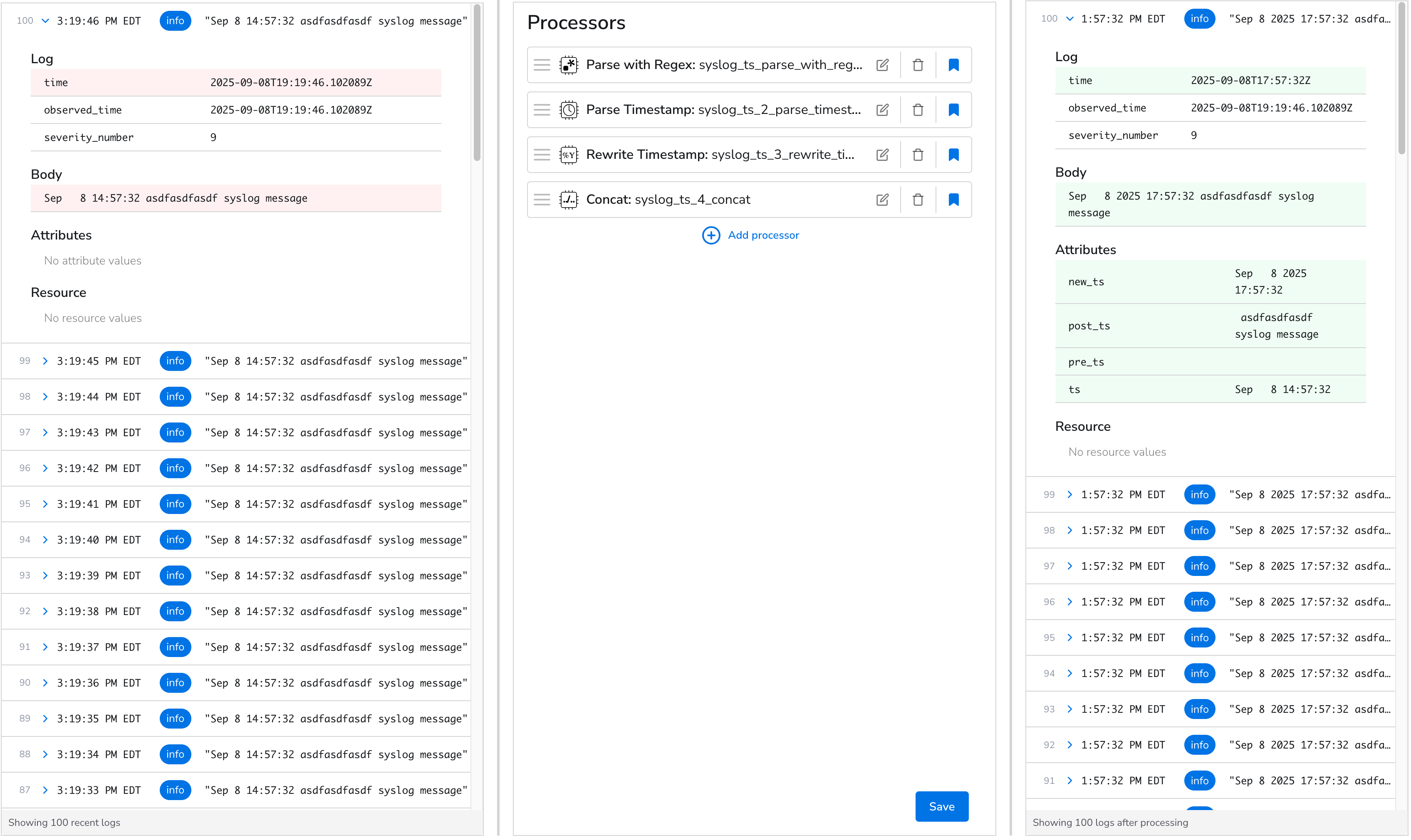
Final result of updating the Body's timestamp
### Extract timestamp from body
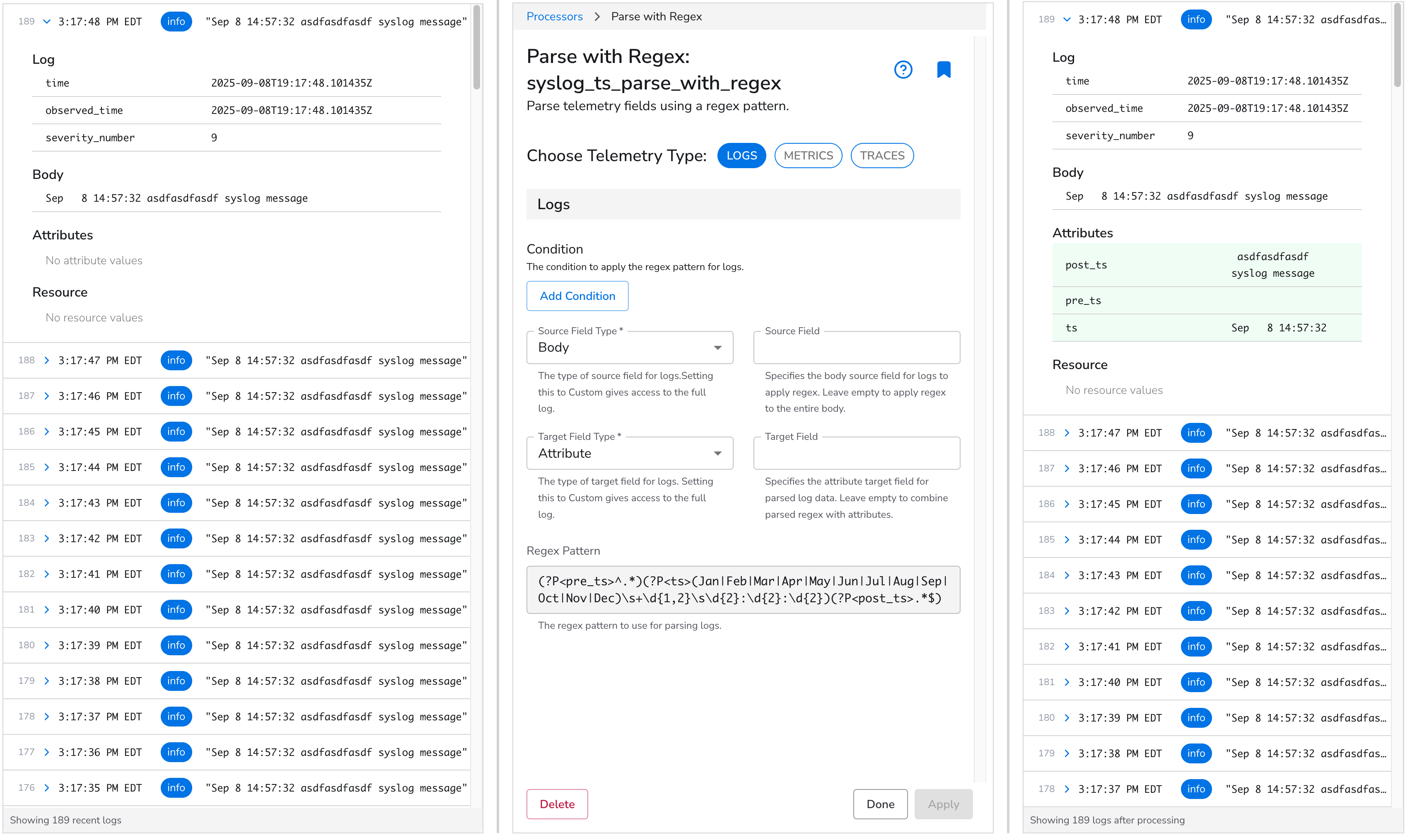
The first processor needed is [Parse with Regex](/integrations/processors/parse-with-regex.md). Select `Body` for the `Source Field Type` . Then select `Attribute` for the `Target Field Type`. Create a regex pattern to extract the timestamp and surrounding elements from the body using [named capture groups](https://developer.mozilla.org/en-US/docs/Web/JavaScript/Reference/Regular_expressions/Named_capturing_group).
```
Sep 8 14:57:32 asdfasdfasdf syslog message
```
```regex
(?P^.*)(?P(Jan|Feb|Mar|Apr|May|Jun|Jul|Aug|Sep|Oct|Nov|Dec)\s+\d{1,2}\s\d{2}:\d{2}:\d{2})(?P.*$)
```
This regex separates the body into three attribute fields `pre_ts` (anything before the timestamp), `ts` (the timestamp), and `post_ts` (anything after the timestamp). The `pre_ts` and `post_ts` attributes are needed to reconstruct the body with a modified timestamp based on `ts` in the final processor described later.
{% hint style="info" %}
The log body in our example starts with the timestamp, therefore `pre_ts` is blank.
{% endhint %}
### Parse timestamp text into the log's timestamp
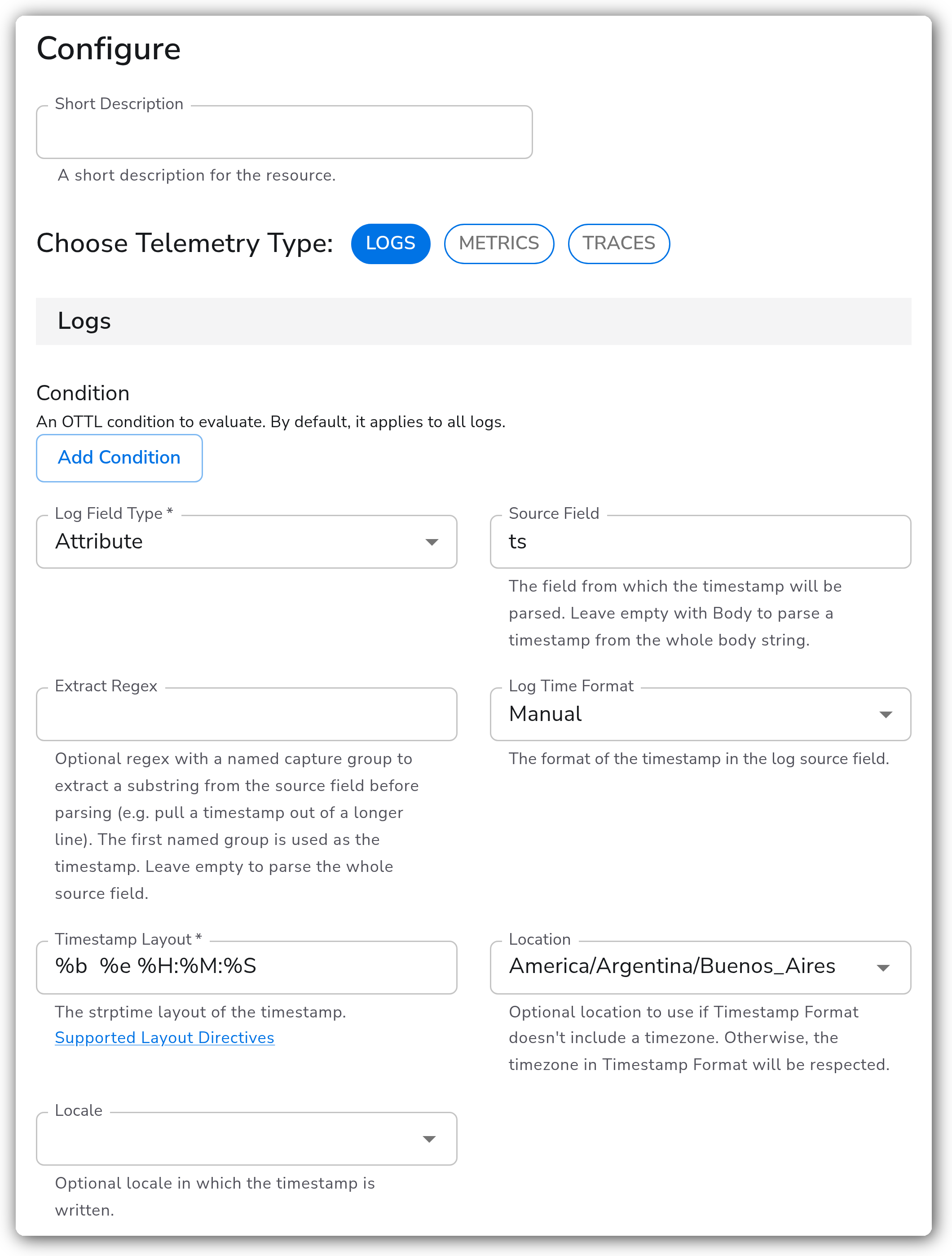
For the second processor we will add [Parse Timestamp](/integrations/processors/parse-timestamp.md), which parses `attribute.ts` and updates `log.time`.
Select `Attribute` for the `Log Field Type`. Then type `ts` for the `Source Field`.
Choose `Manual` for the `Log Time Format`. The value of `Timestamp Layout` will depend on the logs being collected. You can often ask AI to produce the strptime layout based on an example.
```
Sep 8 14:57:32
```
```
%b %e %H:%M:%S
```
{% hint style="info" %}
`ctime` and `strptime` are often used interchangeably. `ctime` converts a Time object to a string, while `strptime` converts a string to a Time object.
{% endhint %}
We can now account for the missing timezone context. In this example, the log's timestamp is UTC-03:00, corresponding to the TZ Identifier `America/Argentina/Buenos_Aires`. Select this as the value of `Location`.
{% hint style="warning" %}
You can set a `Location` only when `Log Time Format` is `Manual`.
{% endhint %}
{% hint style="success" %}
`log.time` now accurately reflects the original log's timestamp as UTC, displaying the expected 3-hour difference.
{% endhint %}
### Make the modified timestamp text
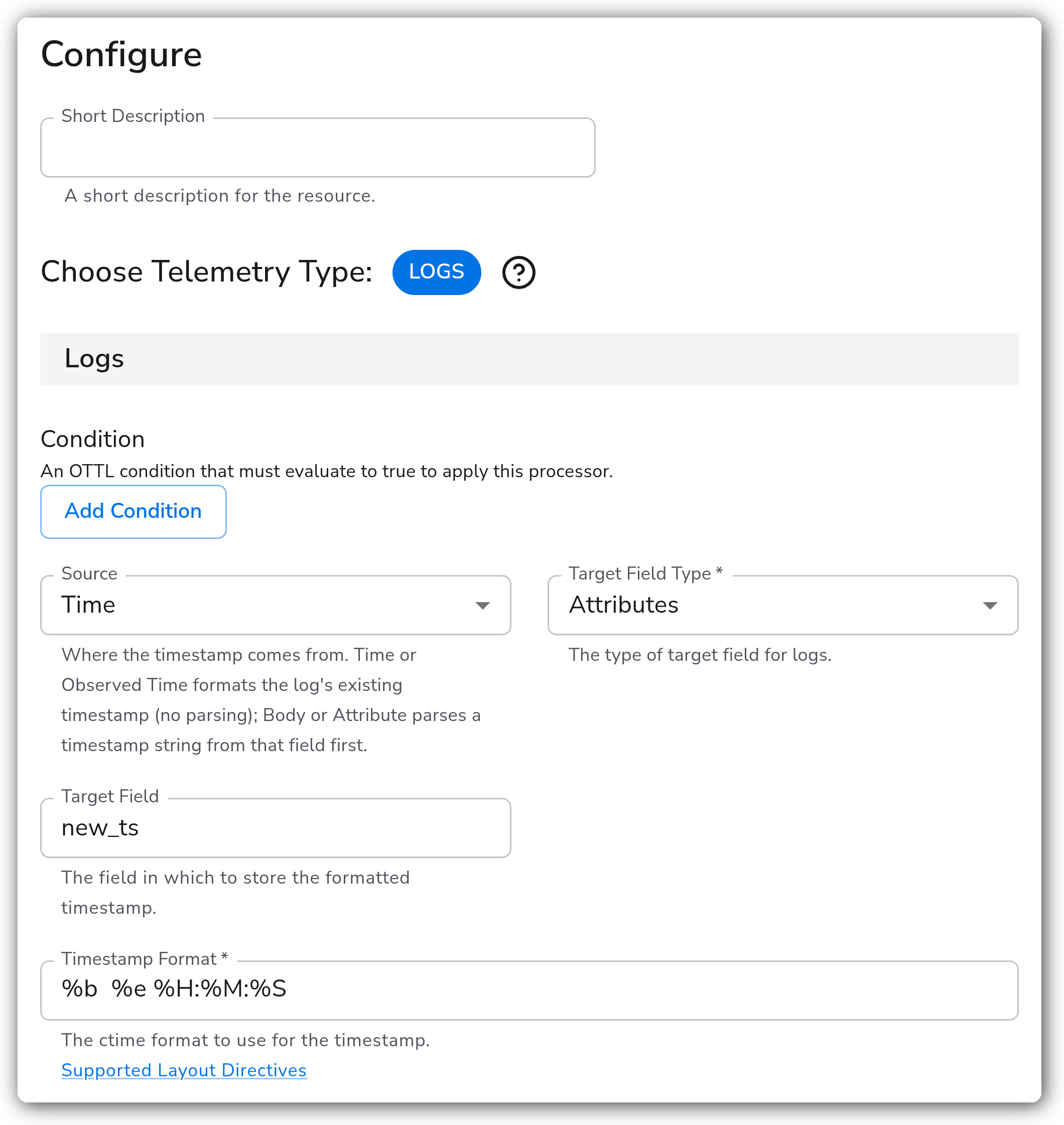
We will now use the [Rewrite Timestamp](/integrations/processors/rewrite-timestamp.md) processor to generate a field `attribute.new_ts`. This field's value formats `log.time` into text while maintaining the original log's format.
Leave `Source` on its default, `Time`, so the processor formats the log's timestamp (`log.time`) that the previous step set. Select `Attributes` for the `Target Field Type`, then type `new_ts` for the `Target Field`. The `Timestamp Format` will match the strptime layout used in the last step, unless there is a specific need to modify the timestamp format.
{% hint style="success" %}
At this stage `new_ts` matches the original format but reflects the corrected (UTC) time.
{% endhint %}
### Overwrite the body with the modified timestamp
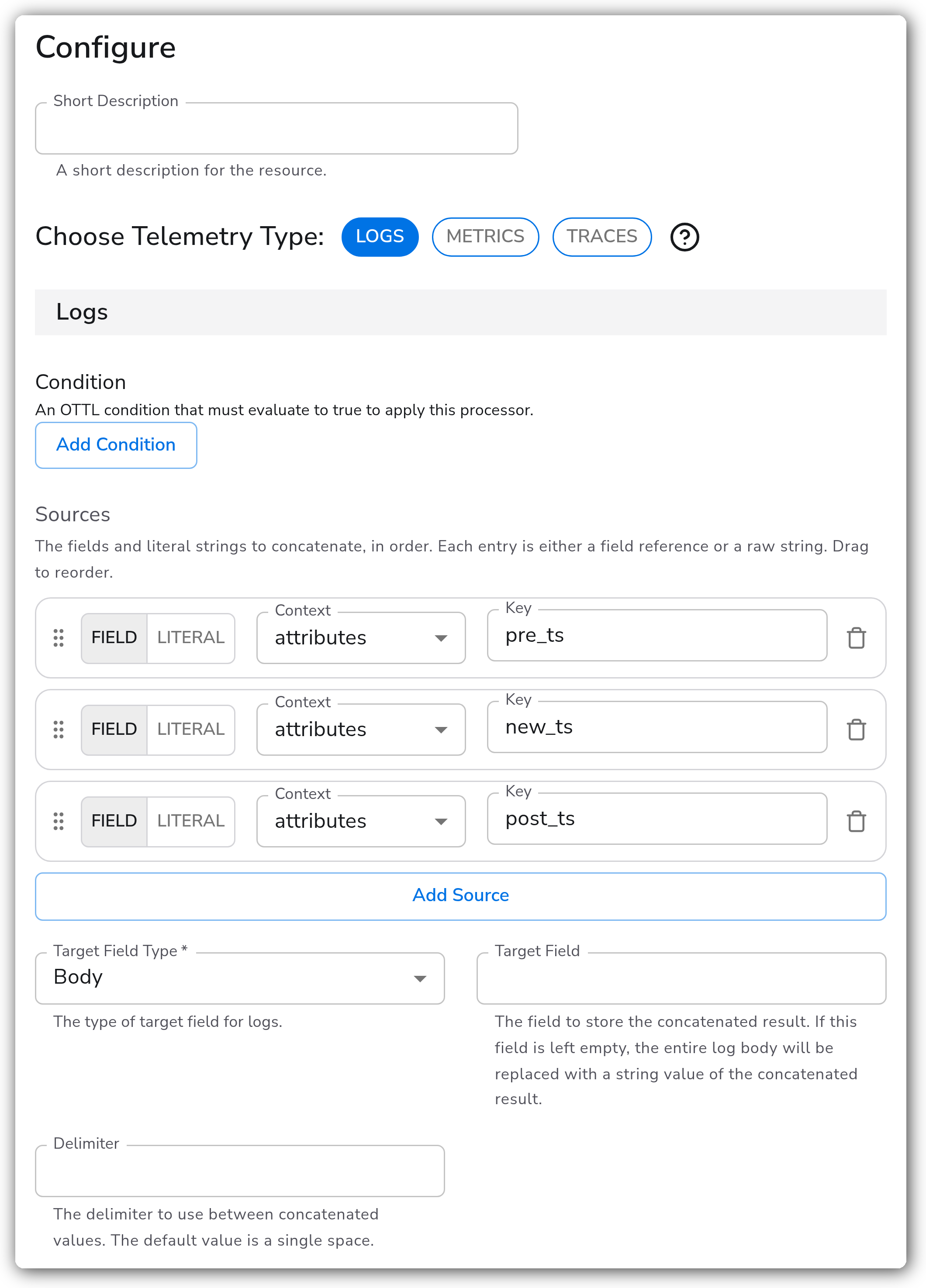
Finally we need to rebuild the log body with the modified timestamp by using [Concat](/integrations/processors/concat.md).
Under `Sources`, add three field rows: `pre_ts`, `new_ts`, and `post_ts`, in that order. Select `Body` for the `Target Field Type`. Leave the `Delimiter` empty so the pieces are joined exactly as captured.
{% hint style="success" %}
Body should match the original but with your corrected timestamp.
{% endhint %}
---
# Agent Instructions
This documentation is published with GitBook. GitBook is the documentation platform designed so that both humans and AI agents can read, navigate, and reason over technical content effectively. Learn more at gitbook.com.
## Querying This Documentation
If you need additional information that is not directly available in this page, you can query the documentation by asking a question.
Perform an HTTP GET request on the following URL with the `ask` and `goal` query parameters:
```
GET https://docs.bindplane.com/how-to-guides/data-collection-and-processing/modifying-log-body-timestamps.md?ask=&goal=
```
`ask` is the immediate question: it should be specific, self-contained, and written in natural language.
`goal` is what the user is ultimately trying to achieve, the reason they need the answer. Sharing it helps GitBook give you a better, more relevant answer. A goal is most helpful when it describes the outcome the user wants rather than restating the question. For example, with `ask=how do I create an API token`, a goal like `automate deployments from our CI pipeline` lets GitBook tailor the answer to that use case.
The response will contain a direct answer to the question and relevant excerpts and sources from the documentation.
Use this mechanism when the answer is not explicitly present in the current page, you need clarification or additional context, or you want to retrieve related documentation sections.