> For the complete documentation index, see [llms.txt](https://docs.bindplane.com/llms.txt). Markdown versions of documentation pages are available by appending `.md` to page URLs; this page is available as [Markdown](https://docs.bindplane.com/how-to-guides/siem-and-compliance/migrate-sentinel-to-secops.md).
# Migrate from Microsoft Sentinel to Google SecOps
This guide walks through adding Google SecOps alongside an existing Sentinel pipeline, gradually shifting log sources, and eventually decommissioning Sentinel — without disrupting your production workflows.
## Prerequisites
* A running Bindplane instance with at least one collector installed and reporting data
* An existing pipeline in Bindplane sending logs to Sentinel
* A Google SecOps instance with your Chronicle customer ID and service account credentials
***
## Step 1: Add SecOps as a second destination
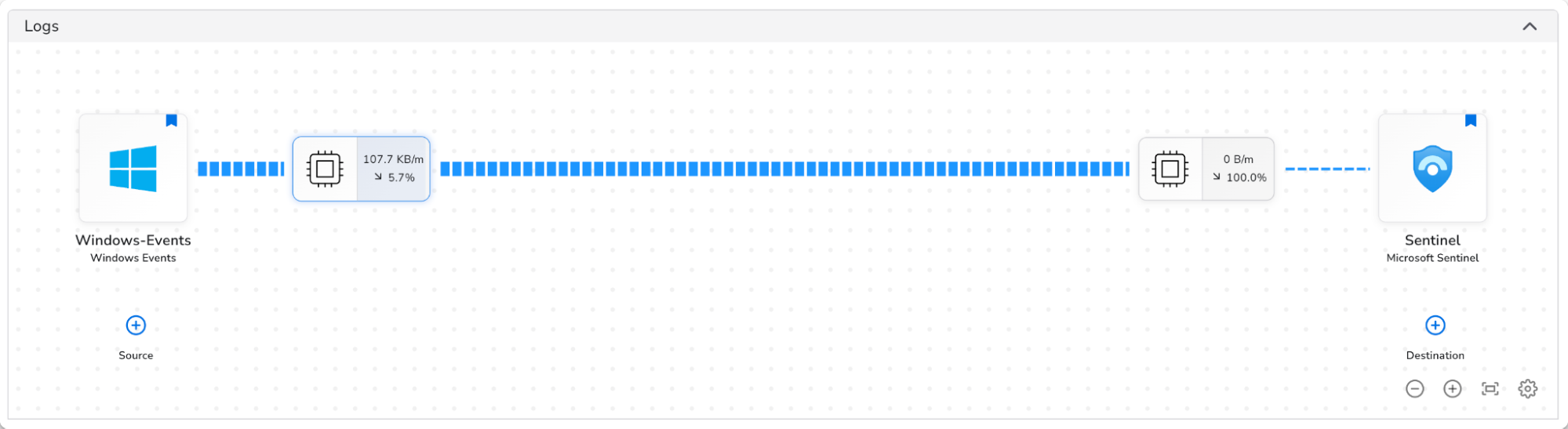
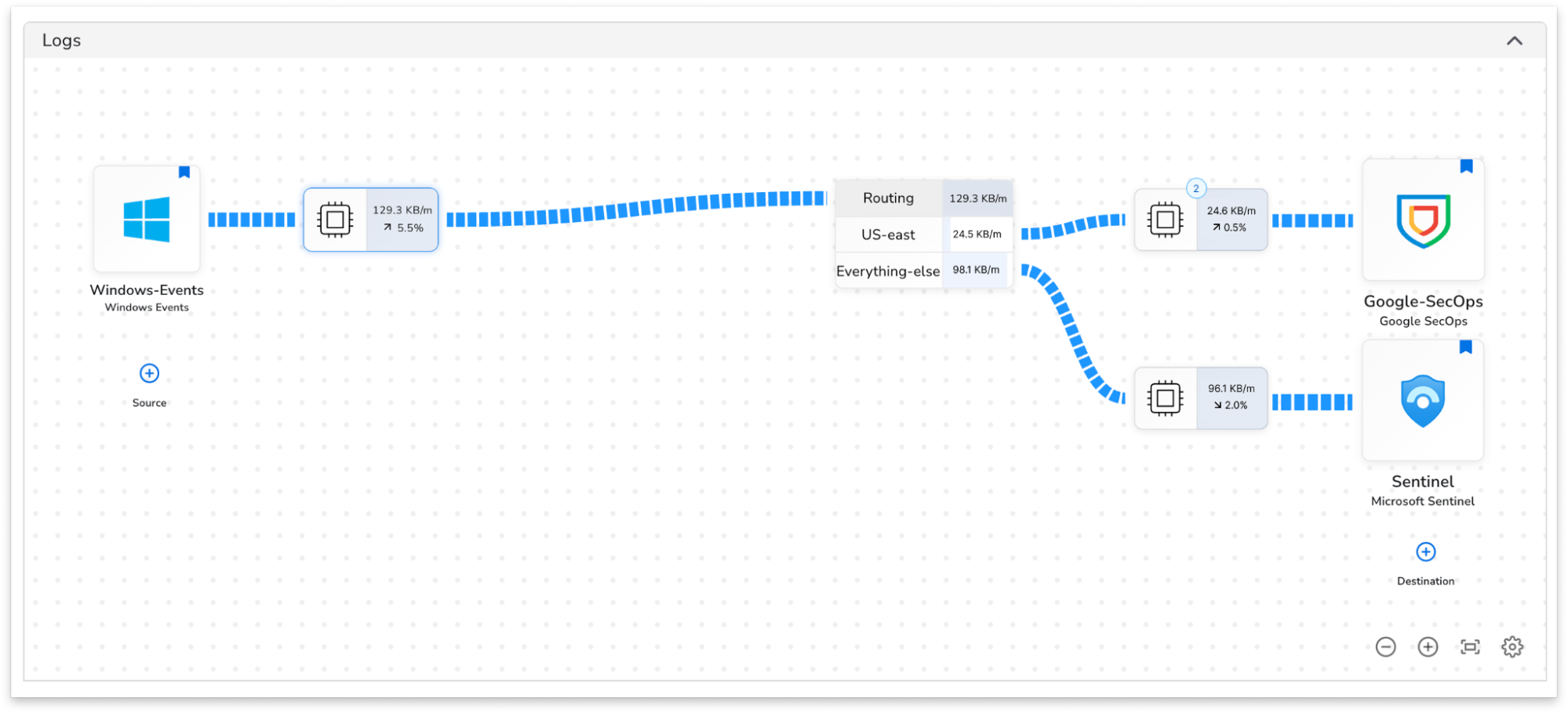
Your starting point is an existing pipeline sending logs to Sentinel:
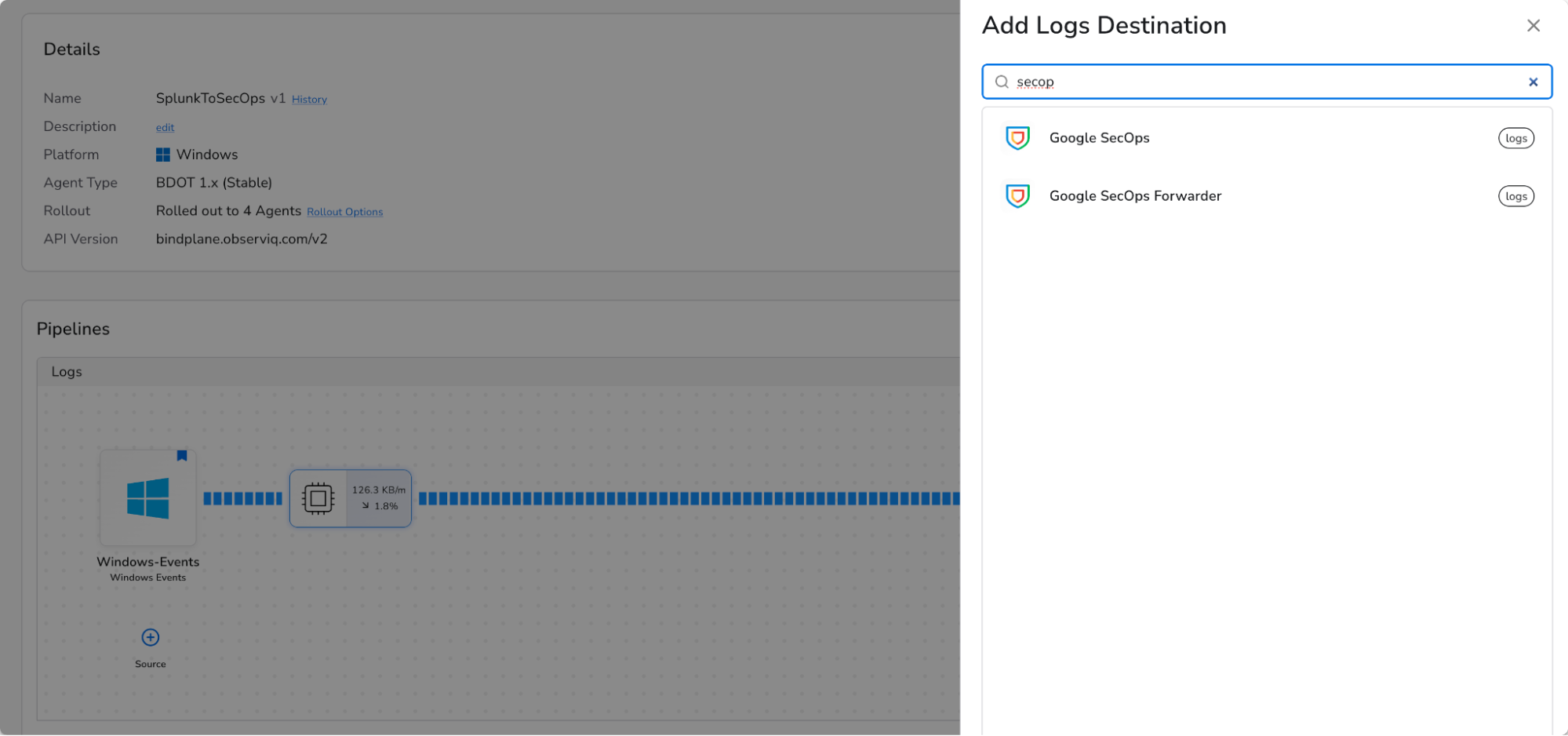
1. Open the pipeline configuration you want to modify and click **(+) Destination**.
2. Select **Google SecOps** from the destination list.
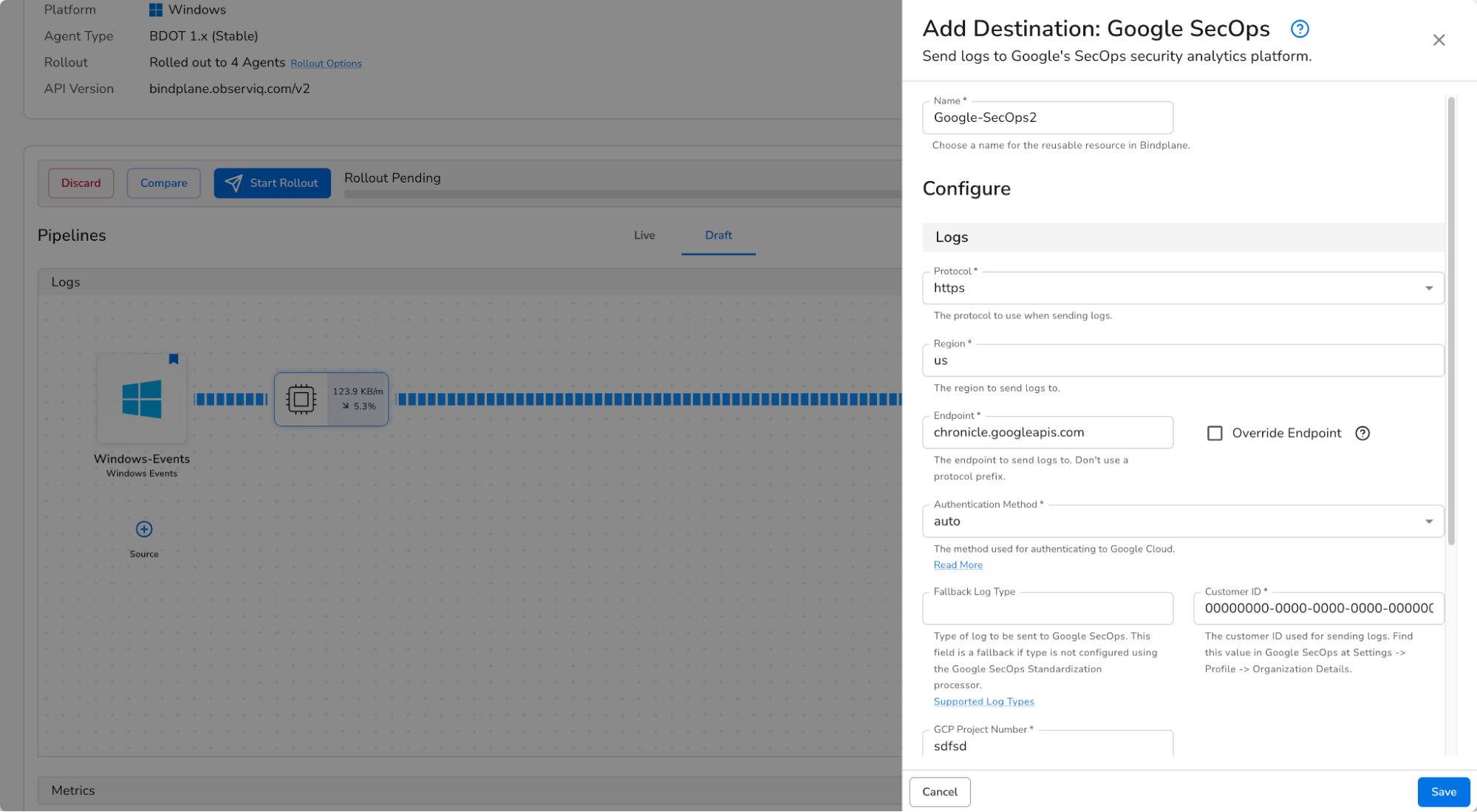
3. Enter your **Chronicle customer ID** (found under Settings > Profile > Organization Details in SecOps) and upload your **service account credentials file** (Settings > Collection Agents > Ingestion Authentication File).
4. Save the destination. It will appear in the topology view but won't receive data yet.
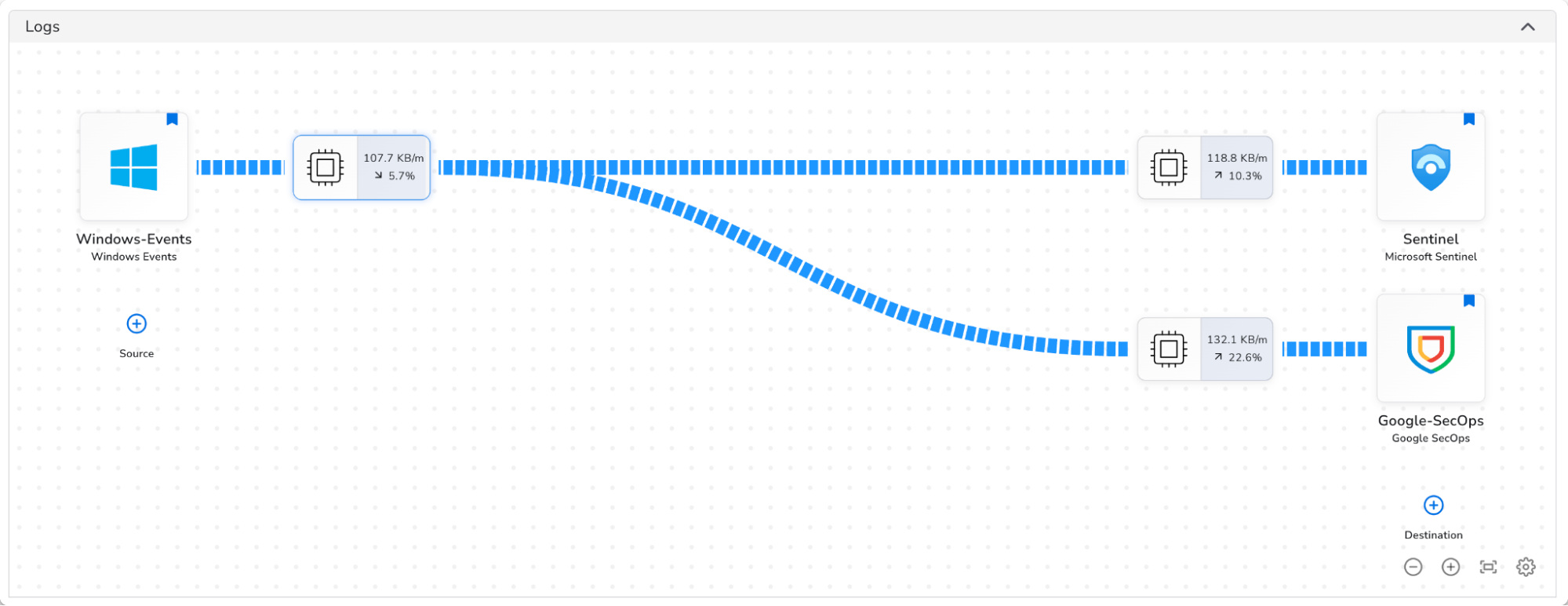
5. Connect it to your pipeline: hover over the processor node on the source side of your pipeline, click **+**, then click the SecOps destination node. This routes telemetry to SecOps.
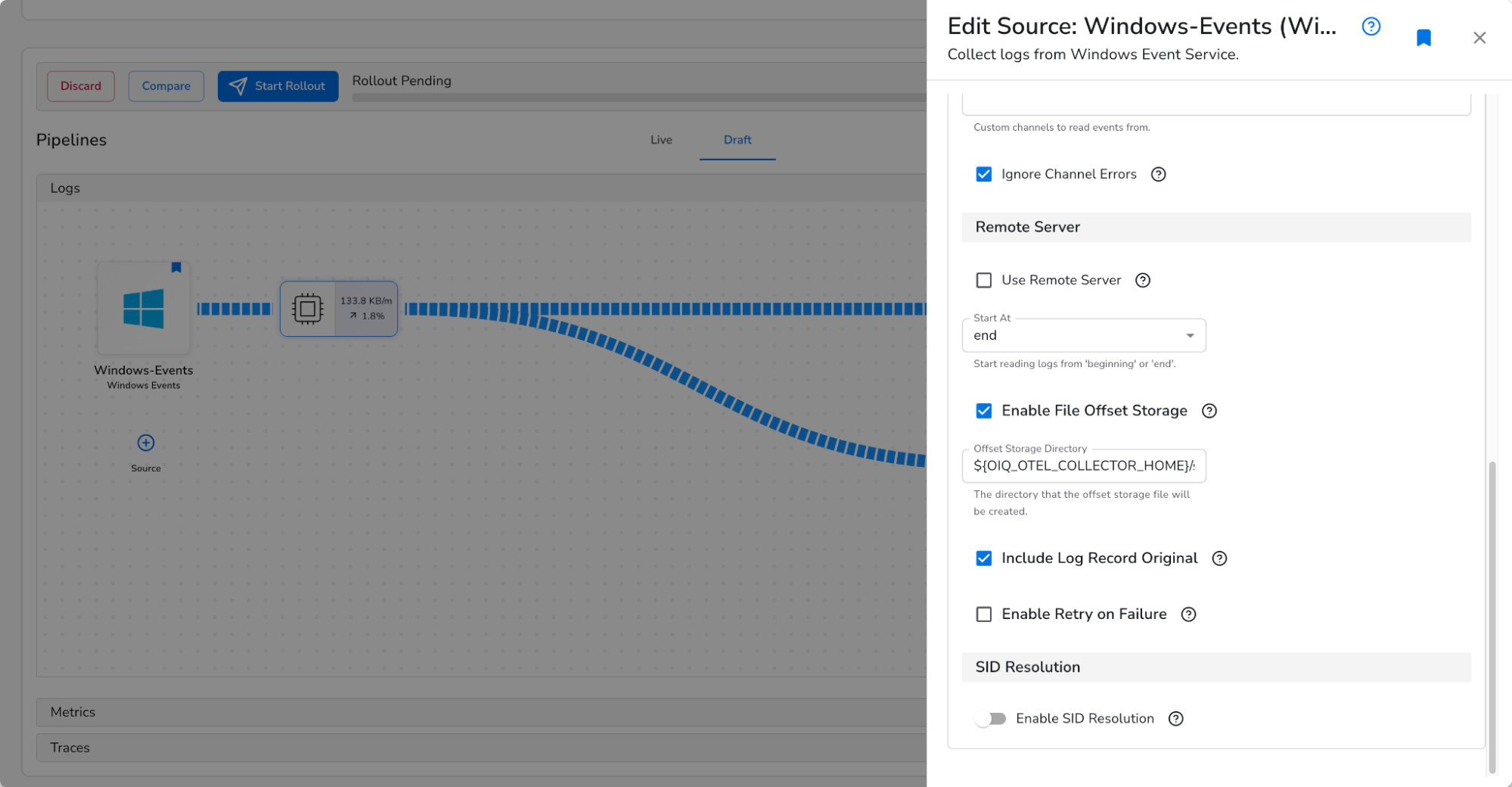
**Important:** Google SecOps expects raw, unparsed logs. If your sources support it, enable **Include Log Record Original** in the source's Advanced settings before routing to SecOps.
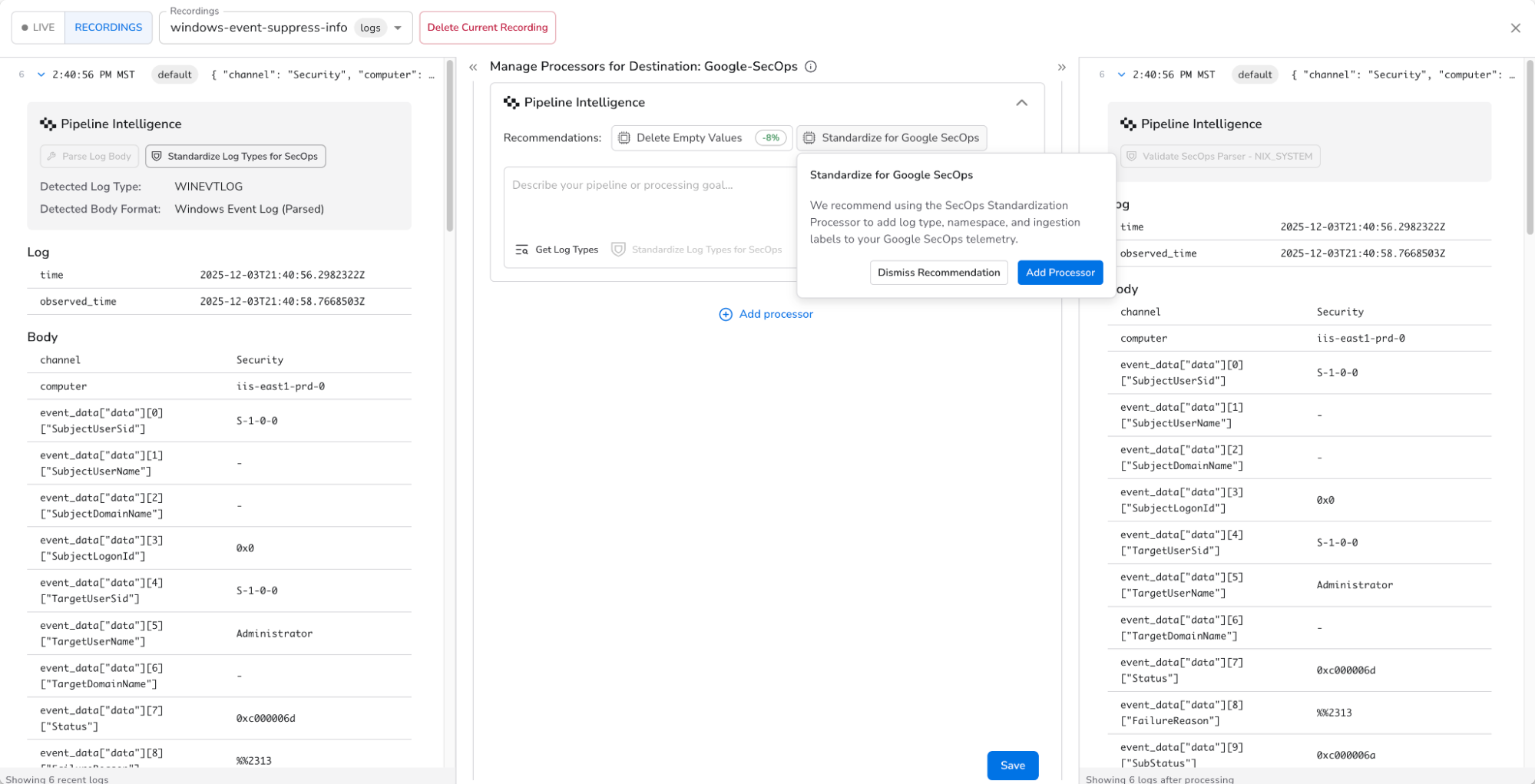
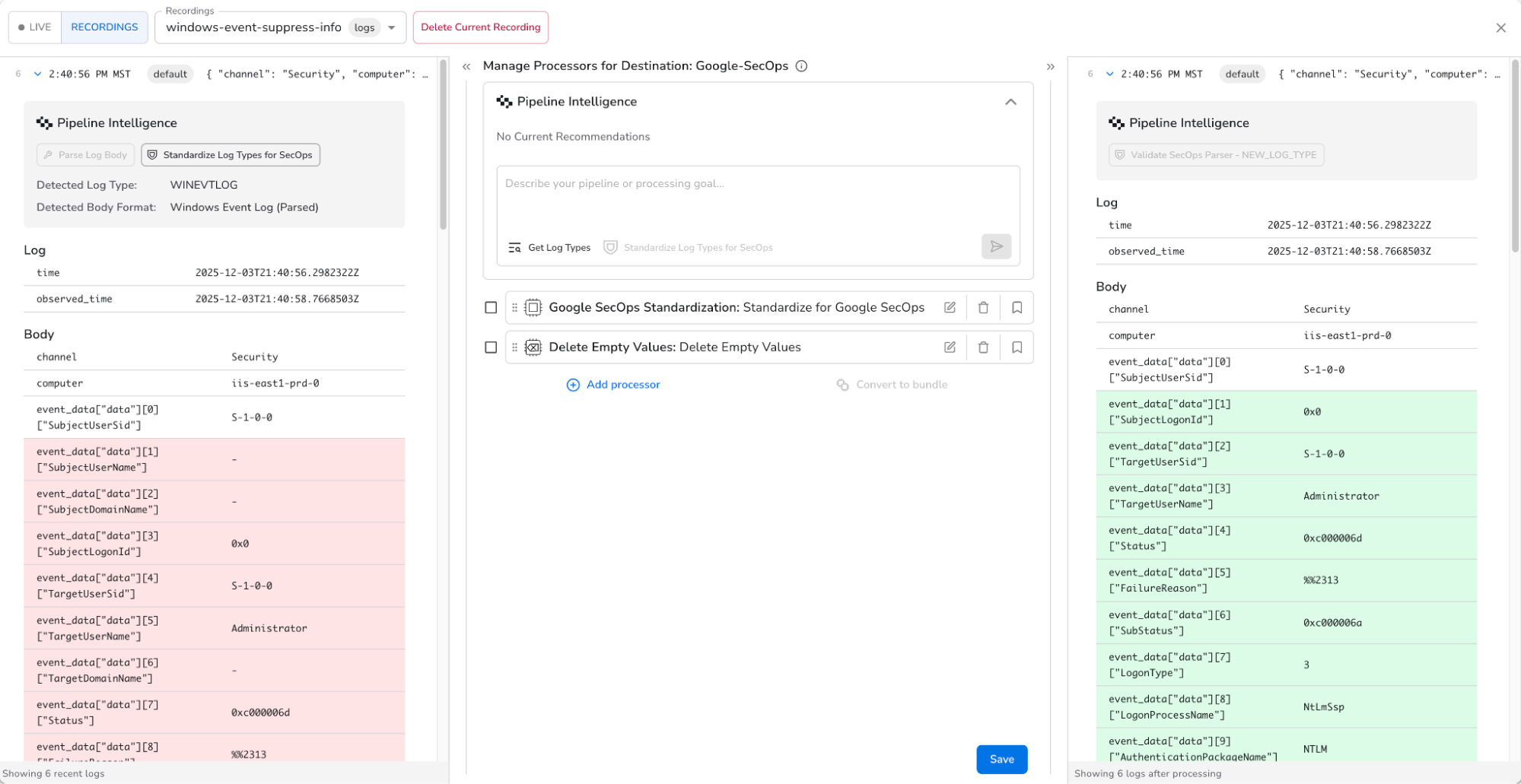
6. Add a **Google SecOps Standardization** processor directly before the SecOps destination. Configure the log type, namespace, and ingestion labels so SecOps knows which parser to apply. If you're unsure of the log type, use **Pipeline Intelligence** to identify it automatically from snapshot data.
7. Add any additional destination-level processors (filters, PII redaction, field drops) on the SecOps path. These run independently of your Sentinel processors.
8. Click **Start Rollout**. Use progressive rollout to deploy to a subset of collectors first and verify data is arriving before rolling out to all collectors.
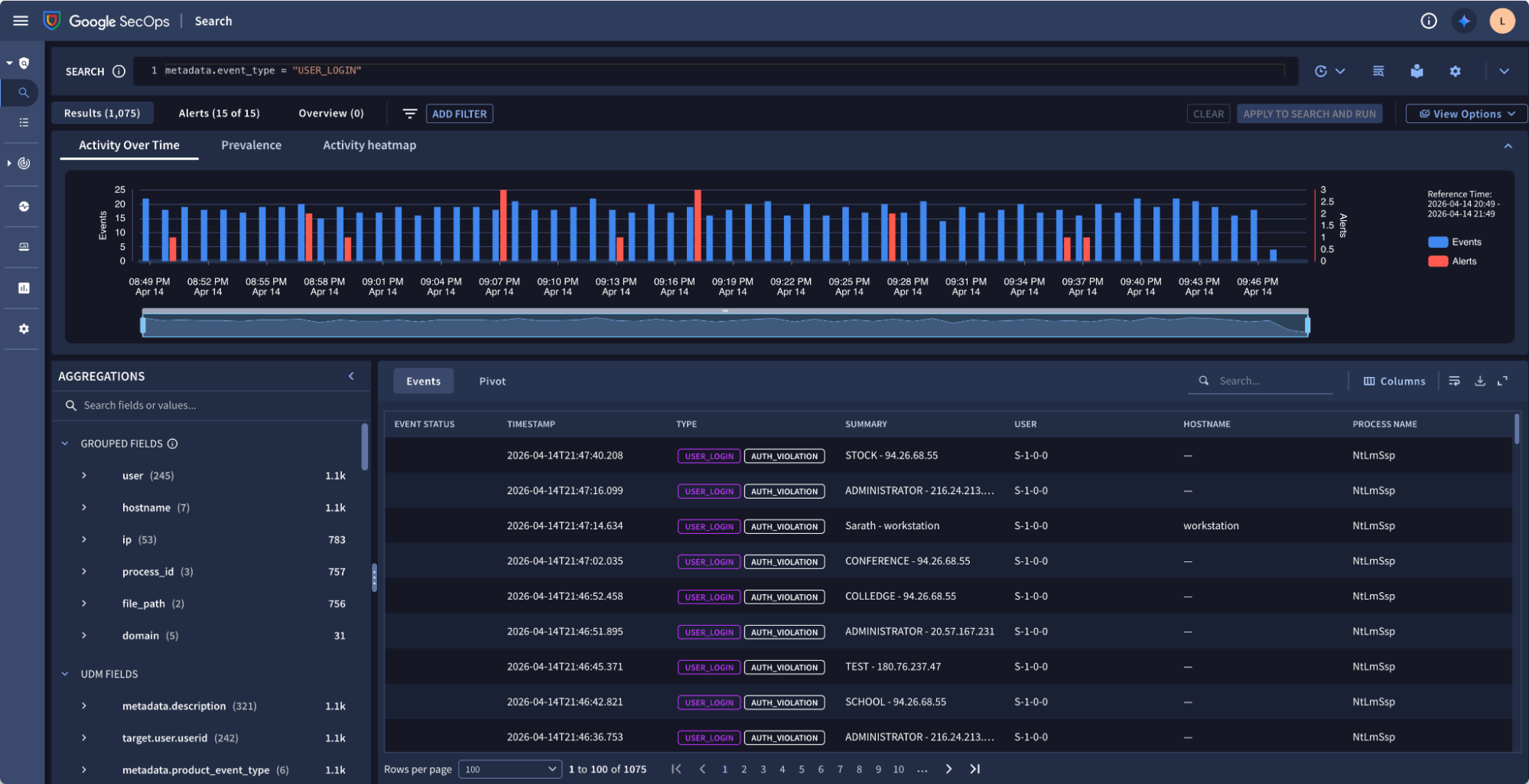
You are now running a **dual-write setup** — logs flow to both Sentinel and SecOps simultaneously. Verify data is arriving in the Google SecOps search UI:
***
## Step 2: Shift log sources to SecOps
Once you've validated SecOps is receiving data correctly, begin migrating log sources one at a time.
### Migrate a log source
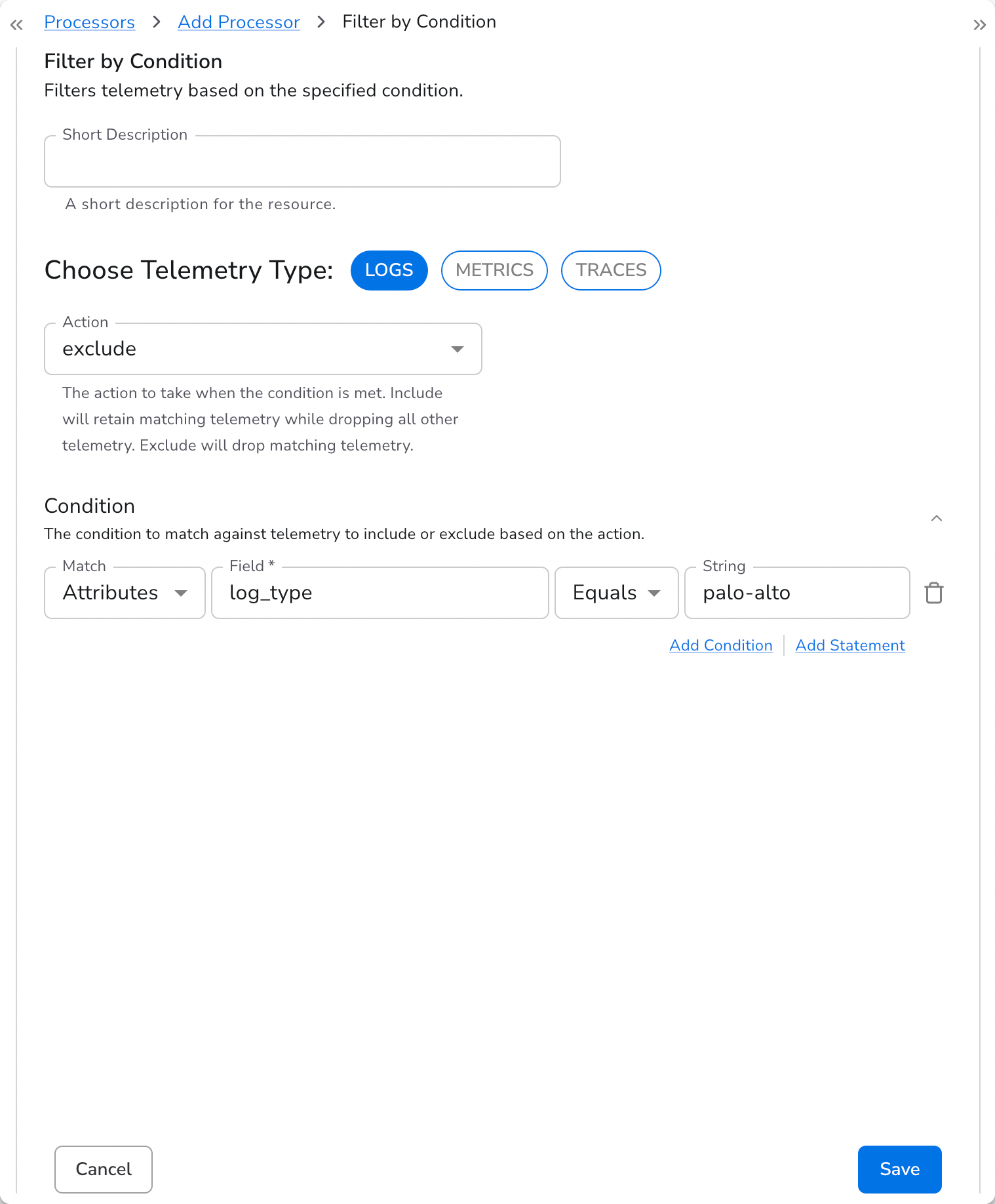
1. In your Sentinel destination configuration, add a **Filter by Condition** processor.
2. Configure it to **exclude** logs where the `log_type` resource attribute matches the source you're migrating (e.g., Palo Alto firewall logs).
3. Those logs stop going to Sentinel but continue flowing to SecOps.
4. Verify detections, dashboards, and alerts are working in SecOps for that source.
5. Repeat for each log source until all have been migrated, then disconnect the Sentinel destination.
Start with lower-risk sources to build confidence before migrating business-critical data.
### Pilot with a specific region or business unit
To validate SecOps with a subset of your team before a broader rollout:
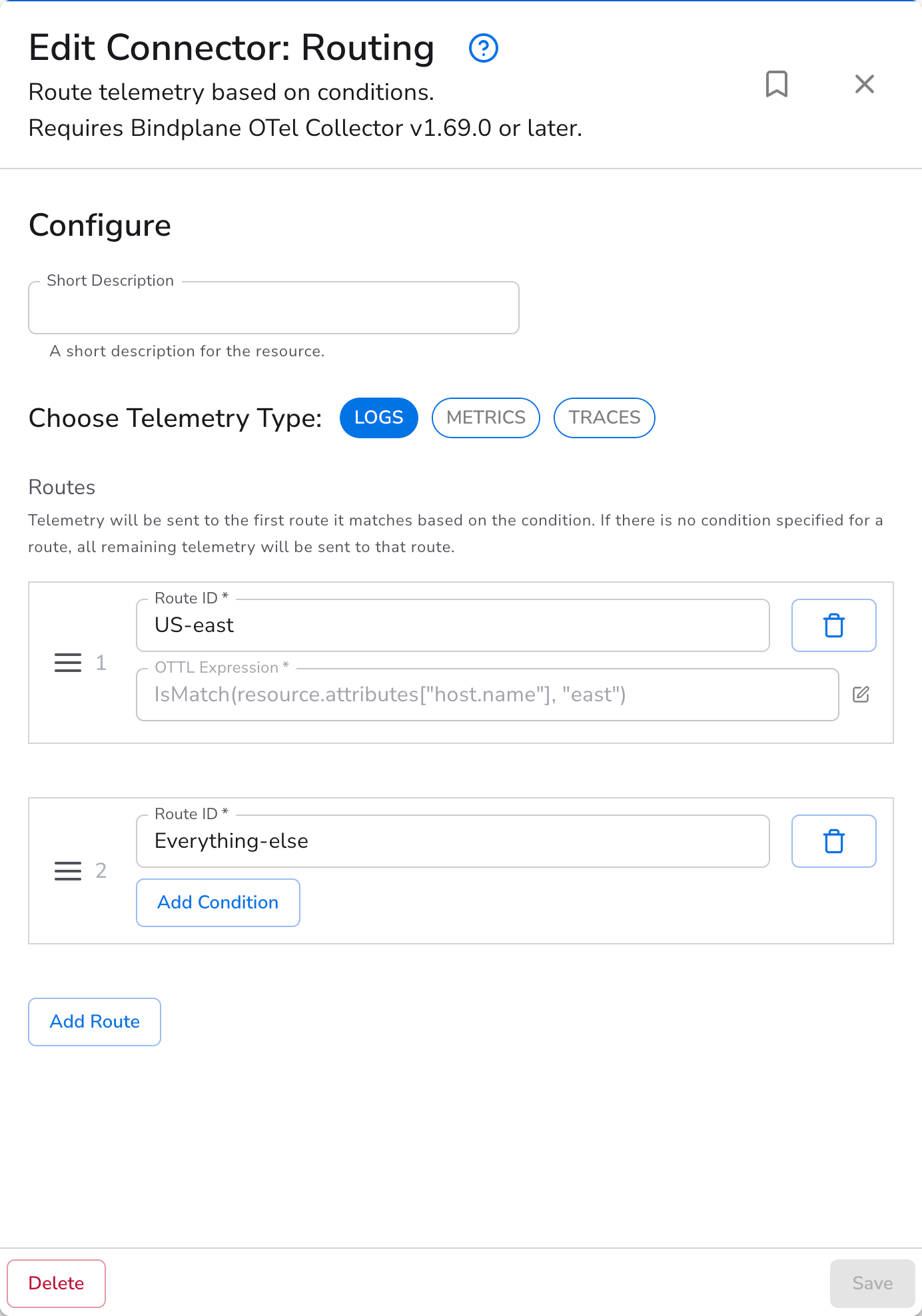
1. Add a **Routing Connector** to your pipeline.
2. Route logs from your pilot region or business unit **exclusively to SecOps**.
3. Route all other logs to Sentinel as before.
4. Once the pilot team has validated their workflows in SecOps, update the routing connector to move additional groups across.
5. When all groups have migrated, remove the Sentinel destination.
***
## Step 3: Process data for the SecOps path
Processing on the SecOps path focuses on data control and labeling, not parsing. Processors run independently of what's configured for Sentinel.
Common processors to add on the SecOps path:
* **Filter by Condition** — drop log types that don't need to be retained in SecOps
* **Remove Fields** — strip sensitive fields before data leaves your environment
* **Redact** — mask PII before ingestion
* **Google SecOps Standardization** — set log type, namespace, and ingestion labels (required)
***
## What's next
Once all log sources have been validated in SecOps and migrated off Sentinel, disconnect the Sentinel destination from your pipeline. Bindplane handles rollouts centrally, so no manual collector config edits are required at any stage.
* [Get started with Google SecOps](https://cloud.google.com/security/products/security-operations)
* [Get started with Bindplane](https://app.bindplane.com)
* [Bindplane + SecOps integration guide](/how-to-guides/siem-and-compliance/migrate-sentinel-to-secops.md)
---
# Agent Instructions
This documentation is published with GitBook. GitBook is the documentation platform designed so that both humans and AI agents can read, navigate, and reason over technical content effectively. Learn more at gitbook.com.
## Querying This Documentation
If you need additional information that is not directly available in this page, you can query the documentation by asking a question.
Perform an HTTP GET request on the following URL with the `ask` and `goal` query parameters:
```
GET https://docs.bindplane.com/how-to-guides/siem-and-compliance/migrate-sentinel-to-secops.md?ask=&goal=
```
`ask` is the immediate question: it should be specific, self-contained, and written in natural language.
`goal` is what the user is ultimately trying to achieve, the reason they need the answer. Sharing it helps GitBook give you a better, more relevant answer. A goal is most helpful when it describes the outcome the user wants rather than restating the question. For example, with `ask=how do I create an API token`, a goal like `automate deployments from our CI pipeline` lets GitBook tailor the answer to that use case.
The response will contain a direct answer to the question and relevant excerpts and sources from the documentation.
Use this mechanism when the answer is not explicitly present in the current page, you need clarification or additional context, or you want to retrieve related documentation sections.