> For the complete documentation index, see [llms.txt](https://docs.bindplane.com/llms.txt). Markdown versions of documentation pages are available by appending `.md` to page URLs; this page is available as [Markdown](https://docs.bindplane.com/how-to-guides/partner-integrations/multi-node-architecture-on-google-cloud.md).
# Multi-Node Architecture on Google Cloud
Deploy Bindplane in a multi-node configuration on Google Cloud
Google Cloud can be used to host a scalable Bindplane architecture by leveraging multiple Bindplane instances in combination with Compute Engine, Cloud Load Balancer, and Pub/Sub.
### Prerequisites
The following requirements must be met:
* You must have access to a [Google Cloud Project](https://cloud.google.com/resource-manager/docs/creating-managing-projects)
* You must have a Bindplane [Enterprise or Google license](https://bindplane.com/solutions/)
* You must be comfortable working with the following Google services
* [Compute Engine](https://cloud.google.com/compute)
* [Cloud Load Balancer](https://cloud.google.com/load-balancing/docs/load-balancing-overview)
* [Pub/Sub](https://cloud.google.com/pubsub)
### Architecture
See the [High Availability](/production-checklist/bindplane/high-availability.md) documentation for details on the architecture that is used in this guide.
### Deployment
#### Firewall
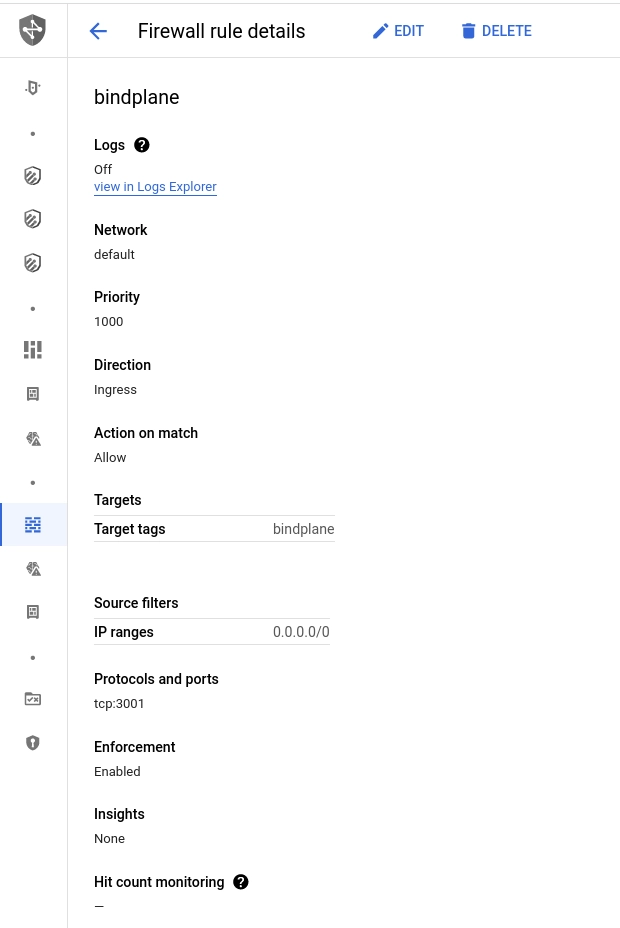
Create a firewall rule that will allow connections to Bindplane on TCP/3001.
* Name: `bindplane`
* Target Tags: `bindplane`
* Source Filters:
* IP ranges: `0.0.0.0`\*.
* Protocols and Ports: `TCP/3001`
\*Allowing access from all IP ranges will allow **anyone** on the internet access to Bindplane. This firewall rule should be restricted to allow access only from networks you trust.
#### Compute Engine
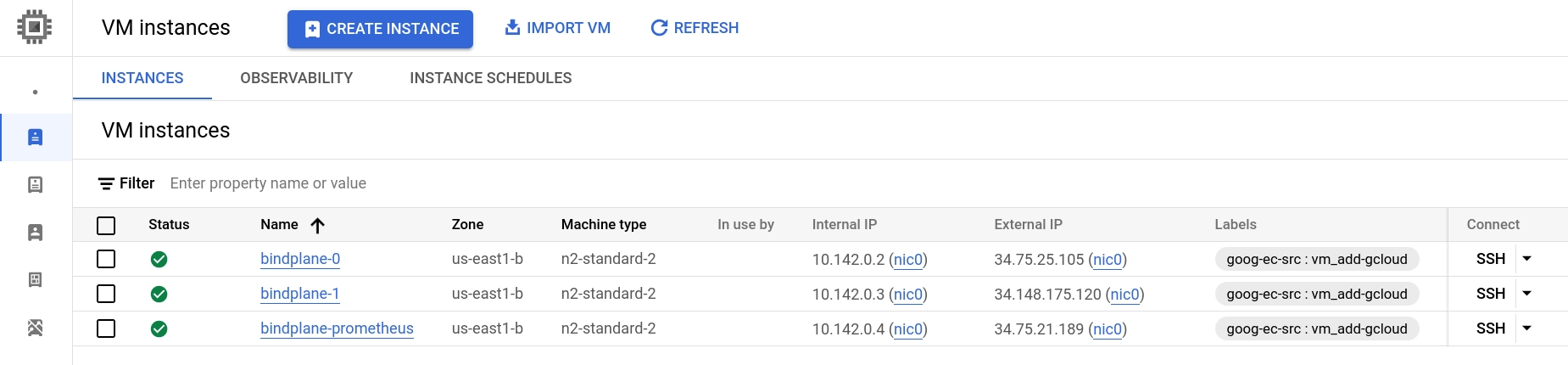
In this guide, we will create three compute instances, `bindplane-0`, `bindplane-1`, and `bindplane-prometheus`. See the [prerequisites](/deployment/virtual-machine/bindplane/prerequisites.md) for information on individually sizing your instances.
We expect this deployment to handle 200 collectors, so we will select the `n2-standard-2` instance type, which has the exact core count required, and more than enough memory. We will use the same instance settings for Prometheus.
* 2 cores
* 8 GB memory
* 60 GB persistent ssd
For the Bindplane instances, use the following additional configuration.
* Static public IP addresses
* Scopes
* Set Cloud Platform to "enabled"
* Set pub/sub to "enabled"
* Network Tags: `bindplane`
#### Prometheus
Prometheus is used as a shared storage backend for Bindplane's collector throughput measurements. Connect to the `bindplane-prometheus` instance and follow our [Self-Managed Prometheus](/production-checklist/bindplane/high-availability/prometheus/installation.md) documentation.
#### Cloud SQL
PostgreSQL is used as a shared storage backend for Bindplane. Google has many options available for production use cases, such as replication and private VPC peering.
**Deploy**
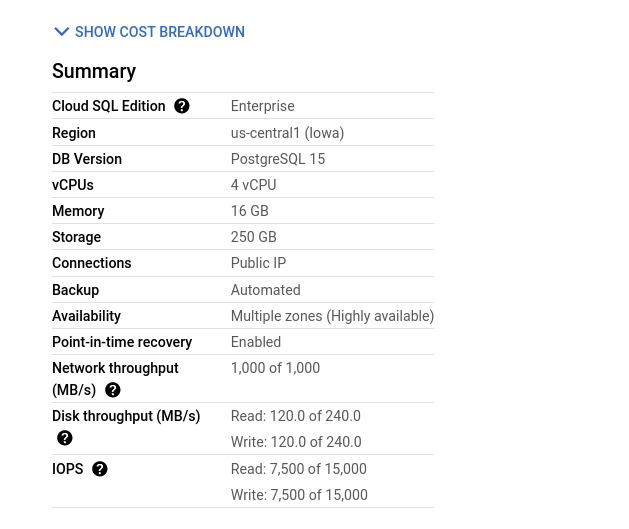
In this guide, we will deploy a basic configuration with:
* 4 cores
* 16GB memory
* 250GB SSD for storage
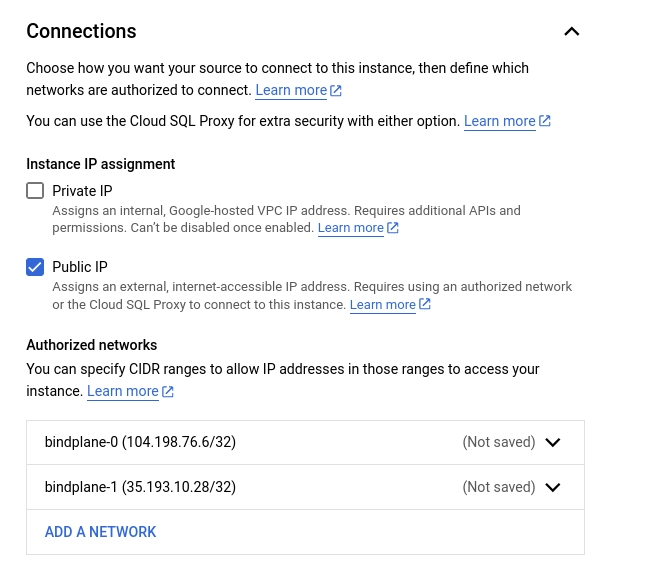
* Authorized Networks (Under "connections") set to the public IP addresses of the previously deployed compute instances
* If you would prefer to keep the CloudSQL instance off of the public internet, [Configure connectivity using VPC peering](https://cloud.google.com/database-migration/docs/postgres/configure-connectivity-vpc-peering)
All other options are left unconfirmed or set to their default values.
**Configure**
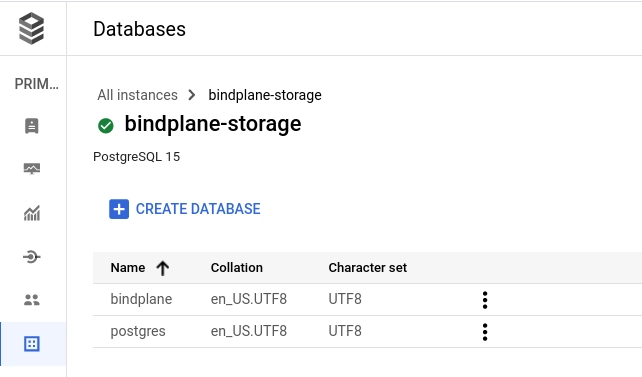
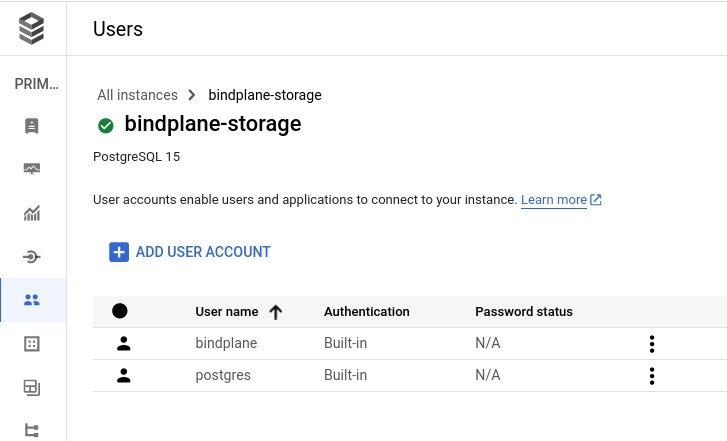
Once the Cloud SQL instance is deployed, we need to create a database and a database user.
On the database's page, select "create database" and name it `bindplane`.
On the user's page, add a new user named `bindplane` and use a secure password, or choose the "generate password" option. Note the password, it will be required when Bindplane is configured.
#### Pub/Sub
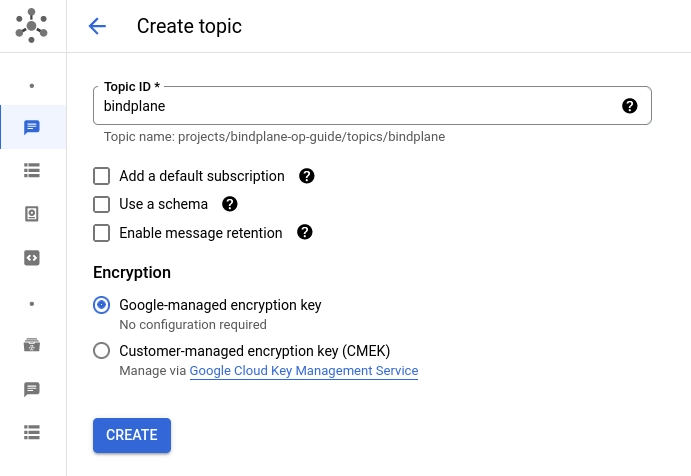
Google Pub/Sub is used by Bindplane to share information between instances. Create a new topic named `bindplane`. Uncheck the "add a default subscription" option. You can keep all other options set to their default value.
#### Cloud Load Balancer
In order to distribute connections between multiple Bindplane instances, a TCP load balancer is required. This guide will use an internet-facing load balancer, however, an internal load balancer is also supported.
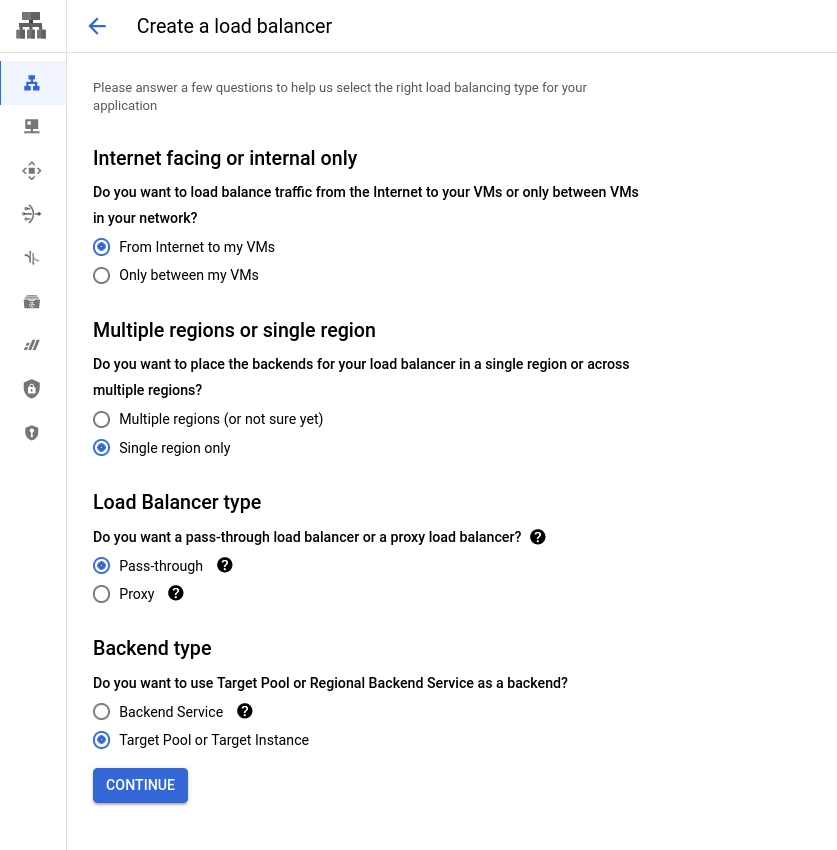
Create a load balancer with the following options:
* From the internet to my VMs
* Single region only
* Pass-through
* Target Pool or Target Instance
**Backend Configuration**
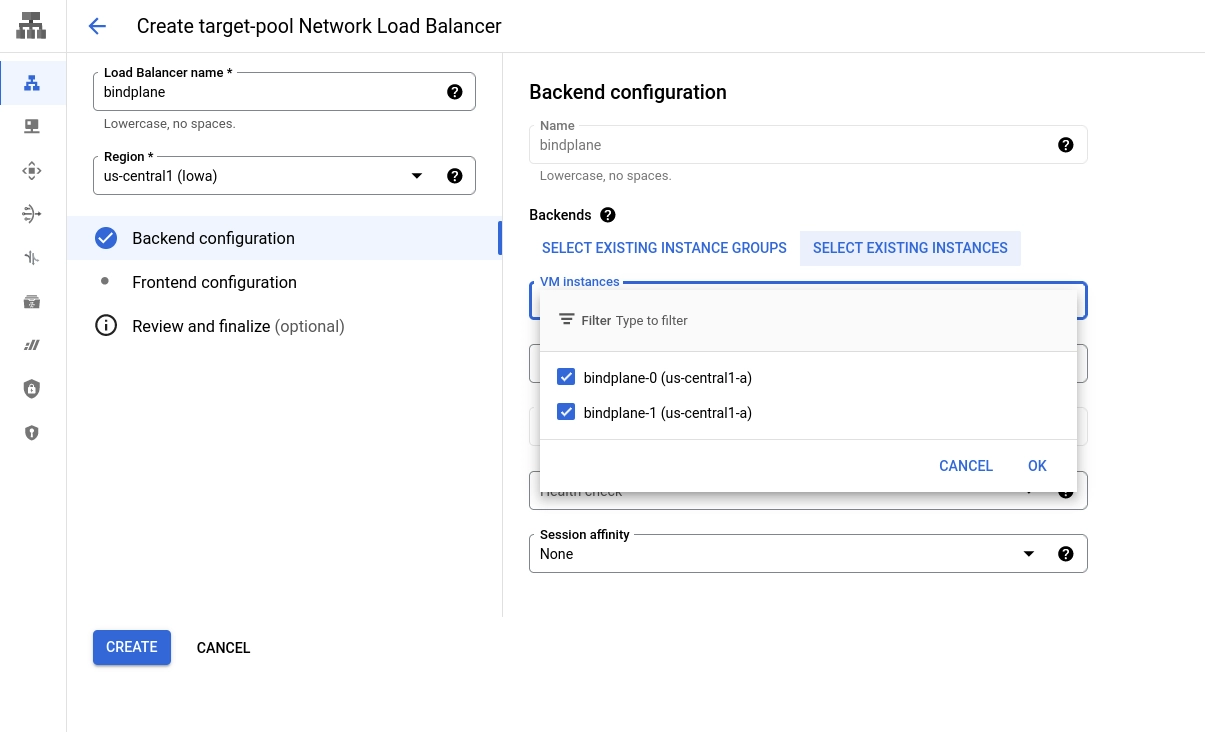
Configure the Backend with the following options:
* Name: `bindplane`
* Region: The region used for your compute instances, pub/sub topic, and CloudSQL instance
* Backends: "Select Existing Instances"
* Select your Bindplane instances
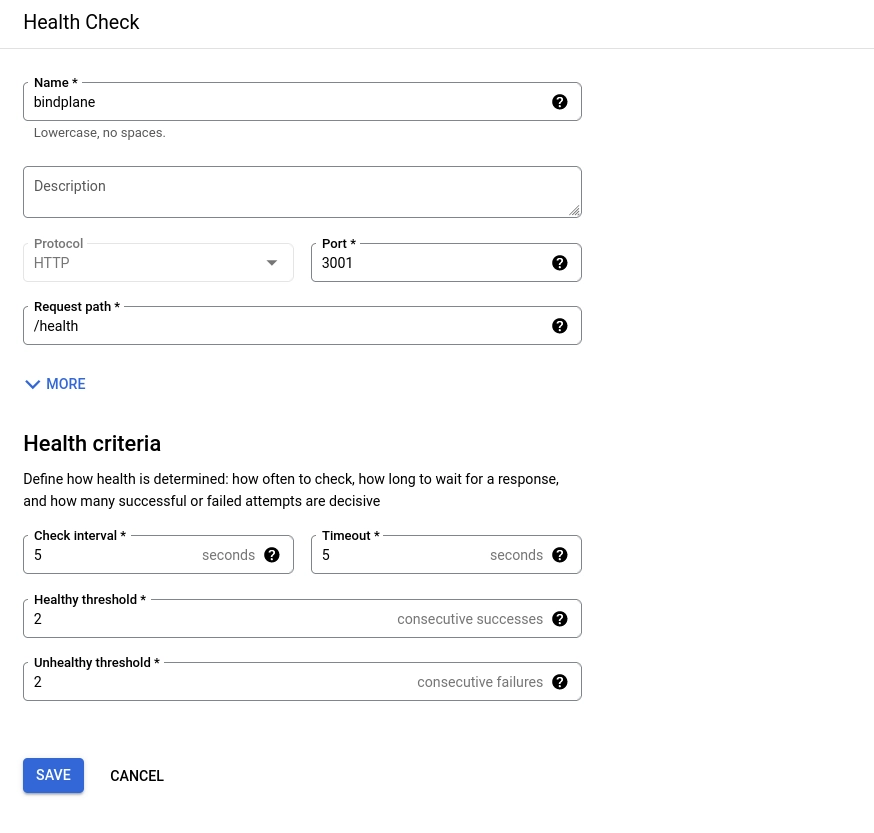
* Health check: Choose "Create new health check"
* Name: `bindplane`
* Protocol: `http`
* Port: `3001`
* Request Path: `/health`
* Health criteria: Use default values
**Frontend Configuration**
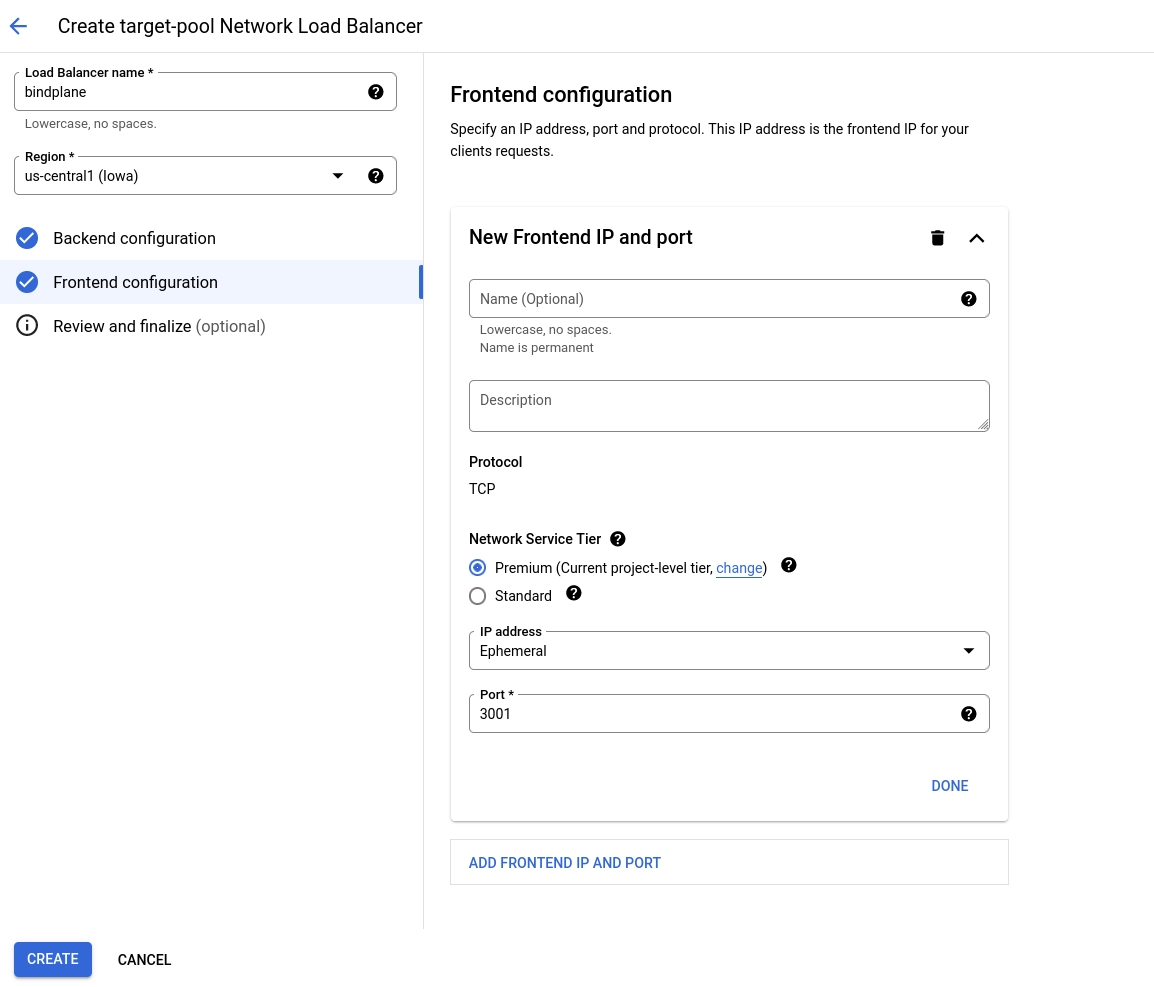
Configure the Frontend with the following options:
* New Frontend IP and Port:
* Name: `bindplane`
* Port: `3001`
**Review and Create**
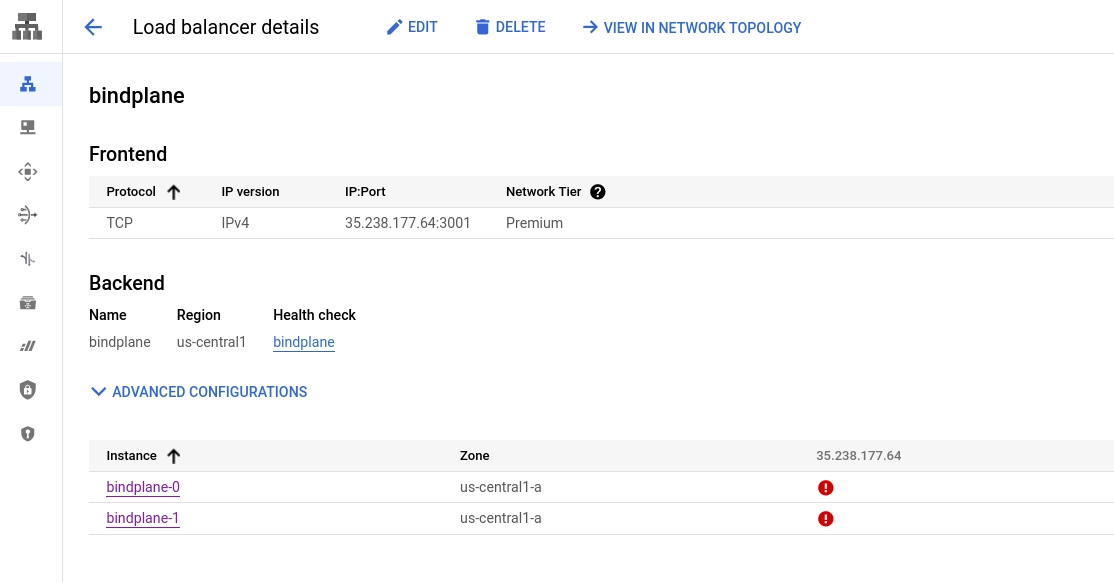
Review the configuration and choose "Create". Once created, the load balancer will exist and it should be failing the healthchecks, because Bindplane is not installed and configured yet.
### Install Bindplane
With Cloud SQL, Pub/Sub, and the load balancer configured, Bindplane can be installed on the previously deployed compute instances.
#### Install Script
Connect to both instances using SSH and issue the installation command:
```bash
curl -fsSlL https://storage.googleapis.com/bindplane-op-releases/bindplane/latest/install-linux.sh -o install-linux.sh && bash install-linux.sh && rm install-linux.sh
```
#### Initial Configuration
Once the script finishes, run the `init server` command on one of the instances. You will copy the\
generated configuration file to the second instance after configuring the first.
```bash
sudo BINDPLANE_CONFIG_HOME=/var/lib/bindplane /usr/local/bin/bindplane init server --config /etc/bindplane/config.yaml
```
1. License Key: Paste your license key.
2. Server Host: `0.0.0.0` to listen on all interfaces.
3. Server Port: `3001`
4. Remote URL: The IP address of your load balancer.
1. Example: `http://35.238.177.64:3001`
5. Enable Multi Project: Yes
6. Auth Type: Single User\*
7. Storage Type: `postgres`
8. Host: Public IP address of the CloudSQL instance.
9. Port: `5432`
10. Database Name: `bindplane`
11. SSL Mode: `require`
12. Maximum Number of Database Connections: `100`
13. PostgreSQL Username: `bindplane`
14. PostgreSQL Password: The password you configured during the CloudSQL setup.
15. Event Bus Type: `Google PubSub`
16. PubSub Project ID: Your Google project id
17. PubSub Credentials File: Leave this blank, authentication will be handled automatically.
18. PubSub Topic: `bindplane`
19. PubSub Subscription: Leave blank, subscriptions will be managed by each Bindplane instance.
20. Accept Eula: Choose yes if you agree.
21. Restart the server?: `no`
{% hint style="info" %}
**NOTE**
📘 You can select LDAP or Active Directory if you do not wish to use basic auth. This guide's scope will not cover external authentication.
{% endhint %}
Copy the contents from the file `/etc/bindplane/config.yaml` to the same location on the second instance. This will ensure both instances have an identical configuration. Specifically, both instances require the same value for `auth.sessionSecret`.
#### Configure Remote Prometheus
Bindplane uses Prometheus to store collector throughput metrics. When operating with multiple\
nodes, a shared Prometheus instance is required.
Stop Bindplane:
```bash
sudo systemctl stop bindplane
```
Open the configuration file with your favorite editor. Make sure to use `sudo` or the `root` user as the configuration file is owned by the `bindplane` system project.
```bash
sudo vim /etc/bindplane/config.yaml
```
Find the Prometheus section. It will look like this:
```yaml
prometheus:
localFolder: /var/lib/bindplane/prometheus
host: localhost
port: '9090'
remoteWrite:
endpoint: /api/v1/write
auth:
type: none
```
Make two changes.
1. Add `enableRemote: true`
2. Update `host: bindplane-prometheus`
The final configuration will look like this:
```yaml
prometheus:
enableRemote: true
localFolder: /var/lib/bindplane/prometheus
host: bindplane-prometheus
port: '9090'
remoteWrite:
endpoint: /api/v1/write
auth:
type: none
```
These changes will instruct Bindplane to use a remote Prometheus instance.
#### Start Bindplane
Restart all Bindplane instances in order to pickup the latest configuration.
```bash
sudo systemctl restart bindplane
sudo systemctl status bindplane
```
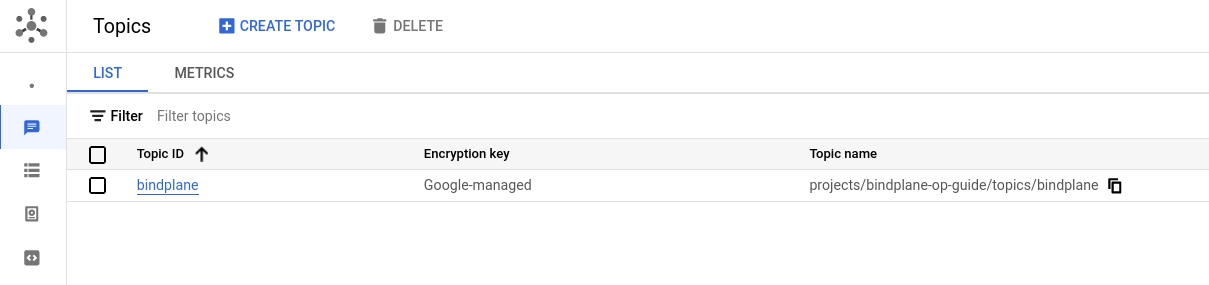
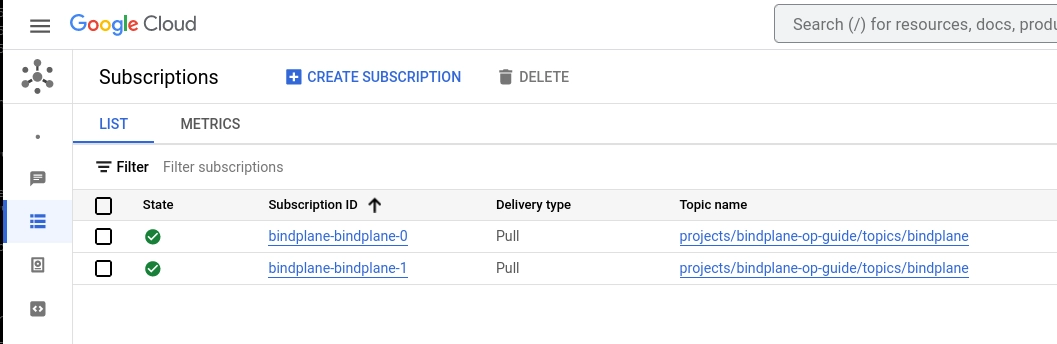
Once Bindplane starts, the Pub/Sub subscriptions are configured automatically:
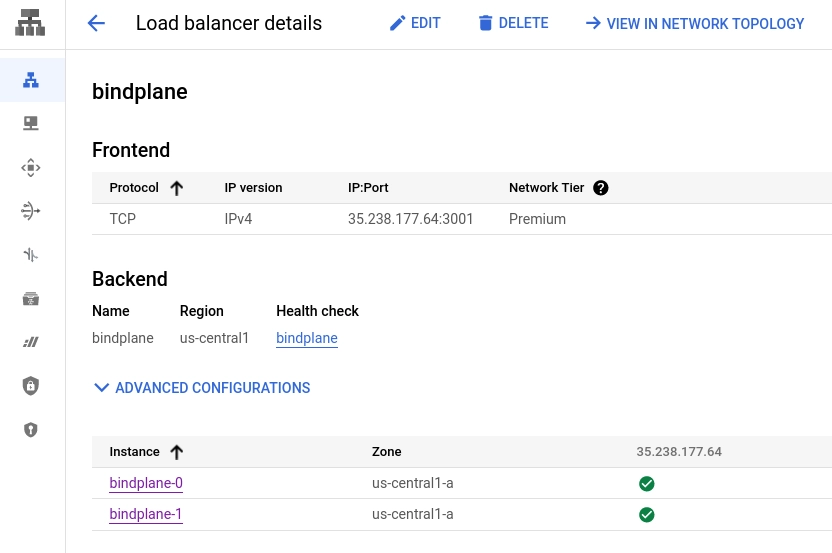
After a few moments, the load balancer healthchecks will begin to pass:
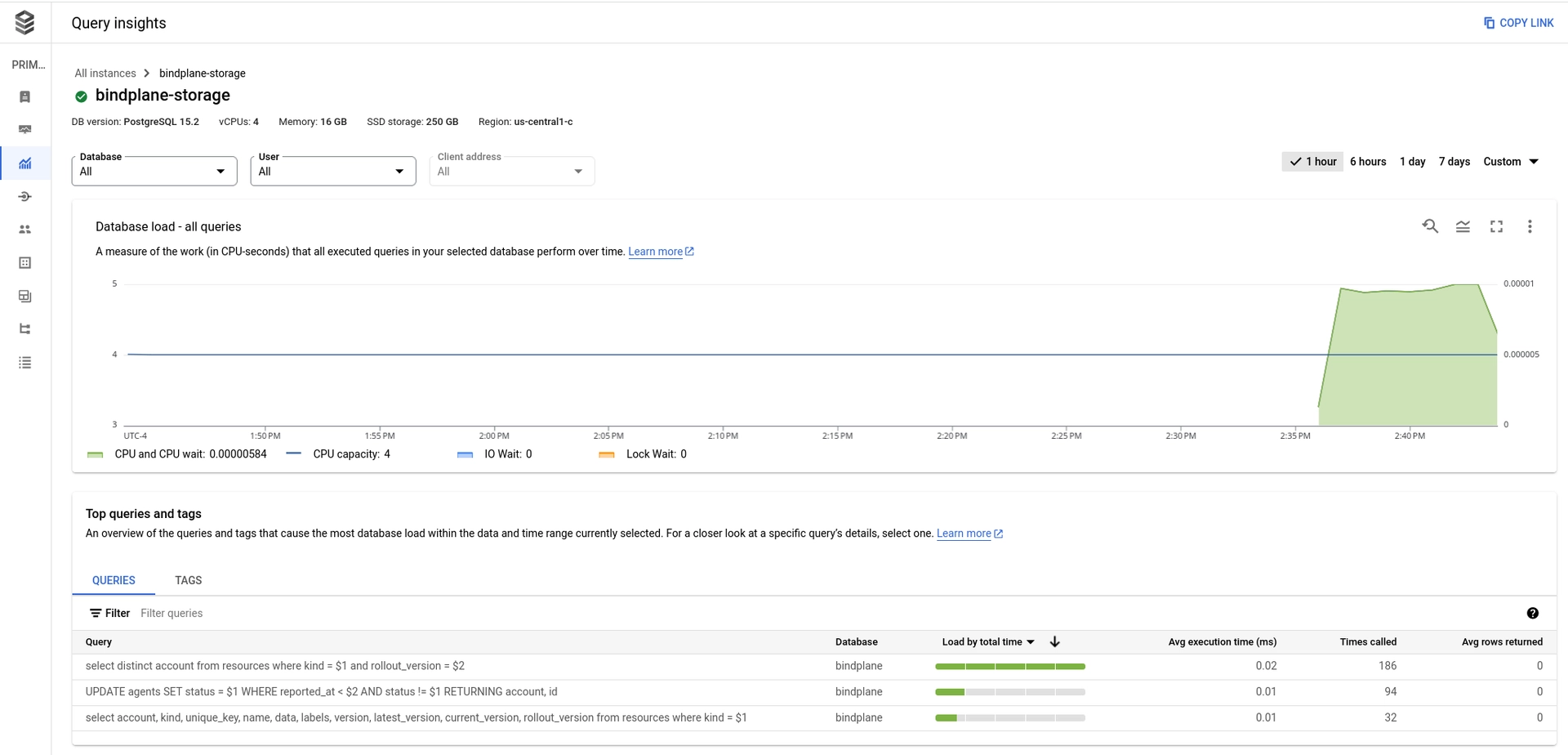
Cloud SQL activity can be monitored by enabling [Query Insights](https://cloud.google.com/sql/docs/postgres/using-query-insights).
### Use Bindplane
#### Connect to Bindplane
Browse to `http://:3001` and sign into the Bindplane installation using\
the username and password you used during the configuration step.
#### Install Collectors
On the collectors page, choose "Install Collector" and inspect the installation command. The `-e` flag should be set to the load balancer address. If it is not, this indicates a misconfiguration in Bindplane's `remoteURL` configuration option in `/etc/bindplane/config.yaml`.
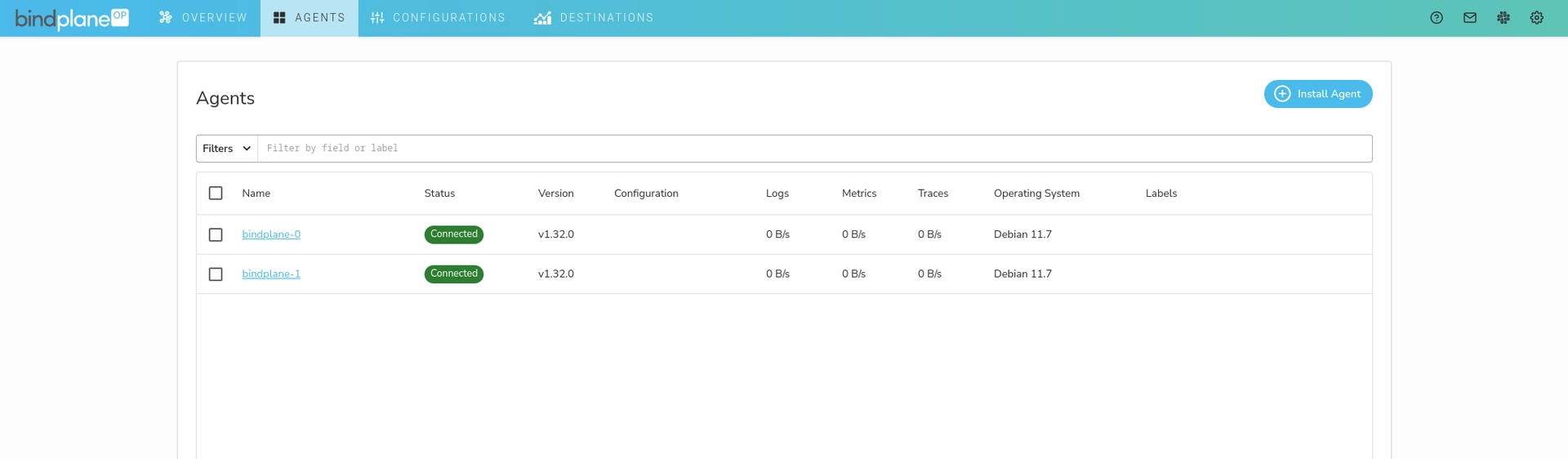
To quickly test, deploy a collector to each of the Bindplane compute instances.
---
# Agent Instructions
This documentation is published with GitBook. GitBook is the documentation platform designed so that both humans and AI agents can read, navigate, and reason over technical content effectively. Learn more at gitbook.com.
## Querying This Documentation
If you need additional information that is not directly available in this page, you can query the documentation by asking a question.
Perform an HTTP GET request on the following URL with the `ask` and `goal` query parameters:
```
GET https://docs.bindplane.com/how-to-guides/partner-integrations/multi-node-architecture-on-google-cloud.md?ask=&goal=
```
`ask` is the immediate question: it should be specific, self-contained, and written in natural language.
`goal` is what the user is ultimately trying to achieve, the reason they need the answer. Sharing it helps GitBook give you a better, more relevant answer. A goal is most helpful when it describes the outcome the user wants rather than restating the question. For example, with `ask=how do I create an API token`, a goal like `automate deployments from our CI pipeline` lets GitBook tailor the answer to that use case.
The response will contain a direct answer to the question and relevant excerpts and sources from the documentation.
Use this mechanism when the answer is not explicitly present in the current page, you need clarification or additional context, or you want to retrieve related documentation sections.