> For the complete documentation index, see [llms.txt](https://docs.bindplane.com/llms.txt). Markdown versions of documentation pages are available by appending `.md` to page URLs; this page is available as [Markdown](https://docs.bindplane.com/feature-guides/ui-and-navigation/keyboard-shortcuts.md).
# Keyboard Shortcuts
Keyboard shortcuts in Bindplane provide a fast and efficient way to navigate the application and perform common actions without using a mouse.
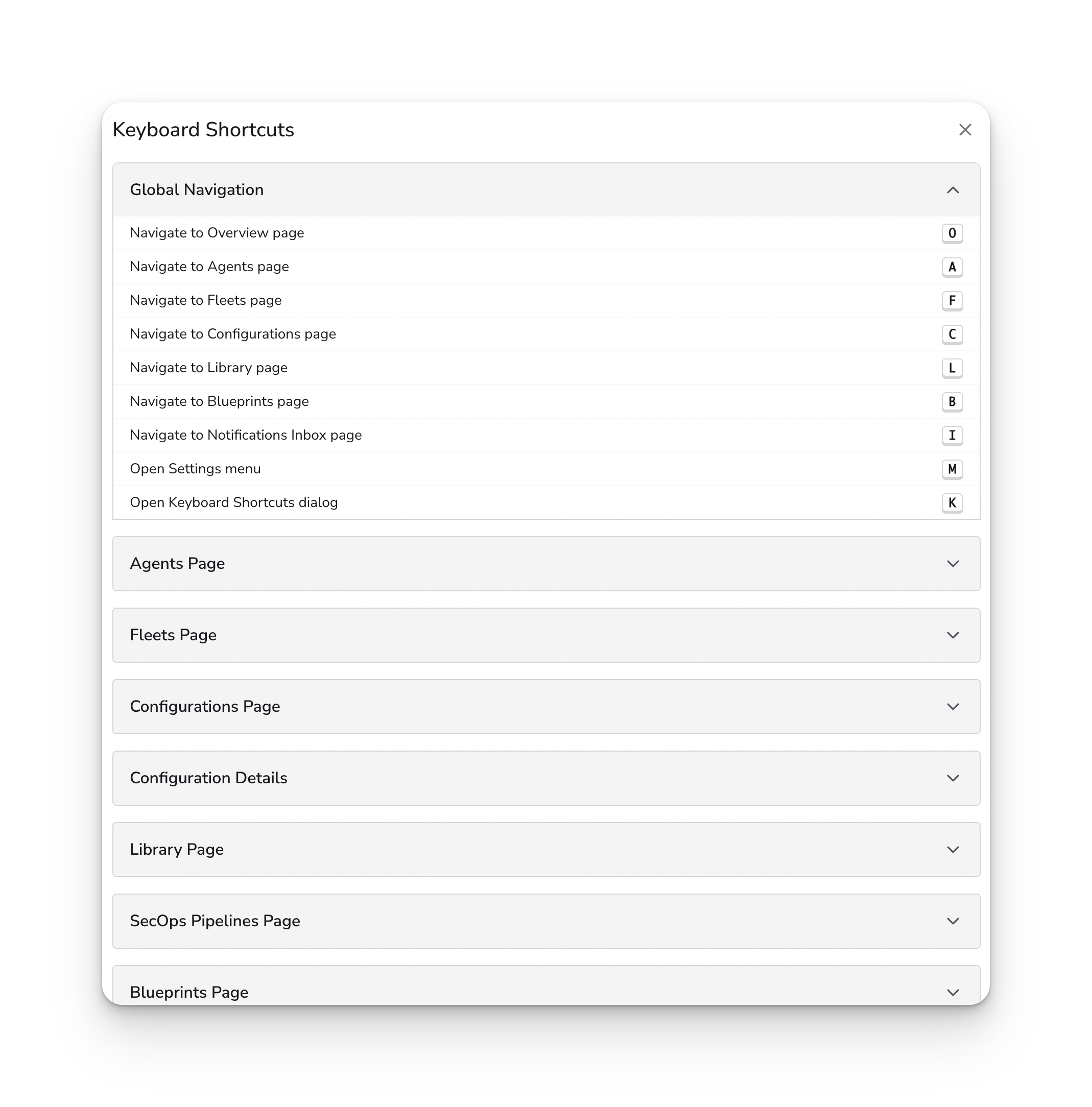
The easiest way to discover available shortcuts is to open the Keyboard Shortcuts dialog:
1. Press **`k`** from anywhere in the application (when not typing in a text field)
2. The dialog displays all shortcuts organized by category
3. Shortcuts are grouped by scope (Global, Page-Specific)
{% hint style="info" %}
**NOTE**
For a complete, up-to-date list of all shortcuts, always refer to the Keyboard Shortcuts dialog in the UI rather than this documentation, as shortcuts may change between releases.
{% endhint %}
### How Shortcuts Work
#### Activation Rules
Keyboard shortcuts are active when:
* You're **not** typing in a text input field
* You're on the appropriate page (for page-specific shortcuts)
#### Key Matching
* Shortcuts match the **exact key** pressed, including modifier keys
* Shortcuts use **single keys** without modifiers (no `Ctrl` or `Cmd` required)
* Shortcuts are **case-sensitive** in terms of modifiers - pressing `a` works, but `Shift+A` does not activate the `a` shortcut
#### Shortcut Scopes
Shortcuts are organized into scopes:
1. **Global**: Available throughout the application (when not typing in text fields)
* Navigation shortcuts for Bindplane feature pages
* Access to Settings menu and Keyboard Shortcuts dialog
2. **Page-Specific**: Available only on specific pages
* **Collectors Page**: Install new collectors
* **Configurations Page**: Create new configurations
* **Configuration Details**: Add sources, destinations, view history, manage rollouts
* **Library Page**: Add new resources (sources, destinations, processors, connectors)
### Keyboard Shortcuts Reference
#### Global Navigation Shortcuts
These shortcuts work from anywhere in the application (except when typing in text fields):
| Key | Action | Description |
| --- | -------------------------- | ----------------------------------- |
| `o` | Navigate to Overview | Opens the Overview page |
| `a` | Navigate to Collectors | Opens the Collectors page |
| `c` | Navigate to Configurations | Opens the Configurations page |
| `l` | Navigate to Library | Opens the Resource Library page |
| `m` | Open Settings Menu | Opens the Settings menu |
| `k` | Open Keyboard Shortcuts | Opens the Keyboard Shortcuts dialog |
#### Collectors Page Shortcuts
When viewing the Collectors page:
| Key | Action | Description |
| --- | --------------------- | ------------------------------------------- |
| `n` | Install New Collector | Opens the dialog to install a new collector |
#### Configurations Page Shortcuts
When viewing the Configurations page:
| Key | Action | Description |
| --- | ------------------------ | ---------------------------------------------- |
| `n` | Create New Configuration | Opens the dialog to create a new configuration |
#### Configuration Details Shortcuts
When viewing a specific configuration's details page:
| Key | Action | Description |
| --- | --------------- | -------------------------------------------------------------- |
| `s` | Add Source | Opens the dialog to add a new Source to the configuration |
| `d` | Add Destination | Opens the dialog to add a new Destination to the configuration |
| `h` | View History | Opens the version history dialog for the configuration |
| `r` | Rollout Options | Opens the Rollout Options dialog |
| `g` | Add Collectors | Opens the dialog to add collectors to the configuration |
#### Library Page Shortcuts
When viewing the Resource Library page:
| Key | Action | Description |
| --- | --------------- | -------------------------------------------------- |
| `s` | Add Source | Opens the dialog to add a new Source resource |
| `d` | Add Destination | Opens the dialog to add a new Destination resource |
| `p` | Add Processor | Opens the dialog to add a new Processor resource |
| `n` | Add Connector | Opens the dialog to add a new Connector resource |
#### Shortcut Mnemonics
Many shortcuts use mnemonic keys that match the action:
* **`o`** - **O**verview
* **`a`** - **A**gents
* **`c`** - **C**onfigurations
* **`l`** - **L**ibrary
* **`m`** - **M**enu (Settings)
* **`k`** - **K**eyboard shortcuts
* **`s`** - **S**ource
* **`d`** - **D**estination
* **`p`** - **P**rocessor
* **`h`** - **H**istory
* **`r`** - **R**ollout
* **`g`** - A**g**ents (in configuration context)
* **`n`** - **N**ew (context-dependent)
### Summary
Keyboard shortcuts in Bindplane provide a powerful way to navigate and interact with the application efficiently.
Key takeaways:
* Press **`k`** from anywhere to see all available shortcuts
* Global shortcuts work throughout the application
* Page-specific shortcuts provide context-aware actions
* Shortcuts automatically disable when typing to prevent conflicts
* Shortcuts use single keys with mnemonic associations
---
# Agent Instructions
This documentation is published with GitBook. GitBook is the documentation platform designed so that both humans and AI agents can read, navigate, and reason over technical content effectively. Learn more at gitbook.com.
## Querying This Documentation
If you need additional information that is not directly available in this page, you can query the documentation by asking a question.
Perform an HTTP GET request on the following URL with the `ask` and `goal` query parameters:
```
GET https://docs.bindplane.com/feature-guides/ui-and-navigation/keyboard-shortcuts.md?ask=&goal=
```
`ask` is the immediate question: it should be specific, self-contained, and written in natural language.
`goal` is what the user is ultimately trying to achieve, the reason they need the answer. Sharing it helps GitBook give you a better, more relevant answer. A goal is most helpful when it describes the outcome the user wants rather than restating the question. For example, with `ask=how do I create an API token`, a goal like `automate deployments from our CI pipeline` lets GitBook tailor the answer to that use case.
The response will contain a direct answer to the question and relevant excerpts and sources from the documentation.
Use this mechanism when the answer is not explicitly present in the current page, you need clarification or additional context, or you want to retrieve related documentation sections.