> For the complete documentation index, see [llms.txt](https://docs.bindplane.com/llms.txt). Markdown versions of documentation pages are available by appending `.md` to page URLs; this page is available as [Markdown](https://docs.bindplane.com/feature-guides/ui-and-navigation/advanced-pipeline-editor.md).

# Advanced Pipeline Editor

The Advanced Pipeline Editor is a new way to work with large configurations in Bindplane. As pipelines grow to dozens of sources, processors, routers, and destinations, the standard topology view becomes hard to navigate. The Advanced Pipeline Editor adds canvas navigation (pan, zoom, and re-center), a searchable component sidebar, and view filtering so you can isolate a single component and its routes without losing the rest of the configuration.

It also introduces embedded processors in routing nodes, so branch-specific processing lives where it runs instead of in a separate processor node downstream of the route.

{% hint style="warning" %}
**IMPORTANT**

The Advanced Pipeline Editor is rolling out to paid organizations now, so it may not yet be enabled for your organization.
{% endhint %}

Use cases include:

* **Navigating large configurations** — Pan and zoom across pipelines with many components instead of scrolling through a fixed layout.
* **Finding a specific component quickly** — Search the full component list from the sidebar rather than visually scanning the canvas.
* **Isolating a data path** — Filter the view down to one component and its routes to trace exactly where a signal flows, which is useful when debugging routing behavior or reviewing a change.
* **Keeping branch logic together** — Embed processors directly in a routing node so the transformation applied to a branch is defined in the same place the branch is defined.

### Prerequisites

* A Bindplane instance on a paid plan (the Advanced Pipeline Editor is rolling out to paid organizations)
* At least one configuration with components in your Bindplane instance
* Larger configurations (multiple sources, routers, and destinations) will benefit the most, but the editor works with configurations of any size

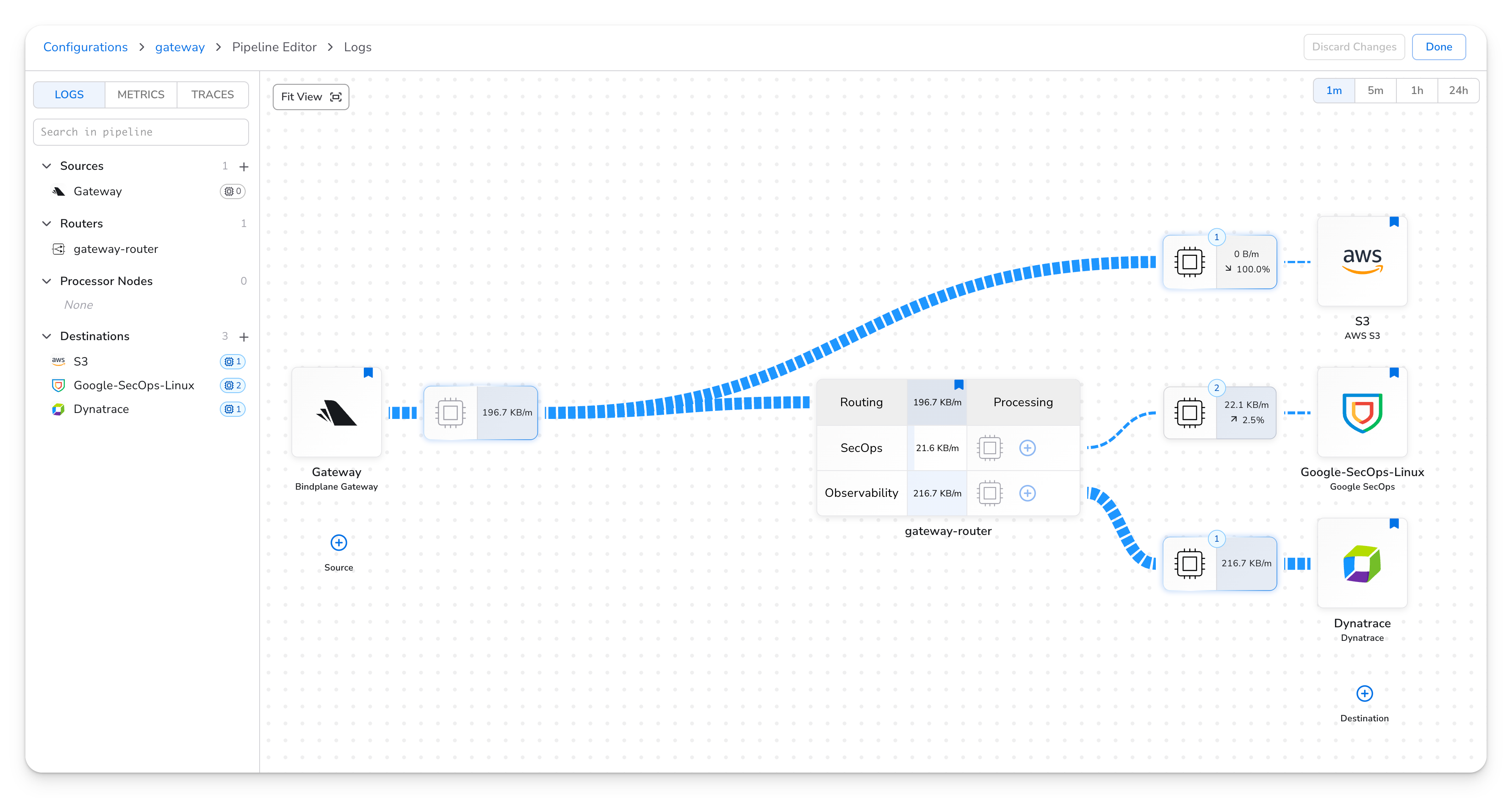
### Navigating the Canvas

1. Click the `Open Advanced Editor` button to open a **Configuration** page to view its pipeline topology.
2. **Pan** by clicking and dragging on empty canvas space to move around the pipeline.
3. **Zoom** using your mouse wheel or trackpad, or the zoom controls on the canvas, to move between a high-level overview and the detail of a single node.
4. Click **Fit View** to bring the entire pipeline back into view at a glance, no matter where you have panned or zoomed.

<figure><img src="/files/Lkq69dVJtFZdGRhTcwuP" alt="Bindplane docs - Advanced Pipeline Editor - canvas navigation with pan, zoom, and re-center controls"><figcaption><p>Pan, zoom, and re-center controls on the pipeline canvas.</p></figcaption></figure>

Re-center is the fastest way to recover your bearings after drilling into one corner of a large configuration.

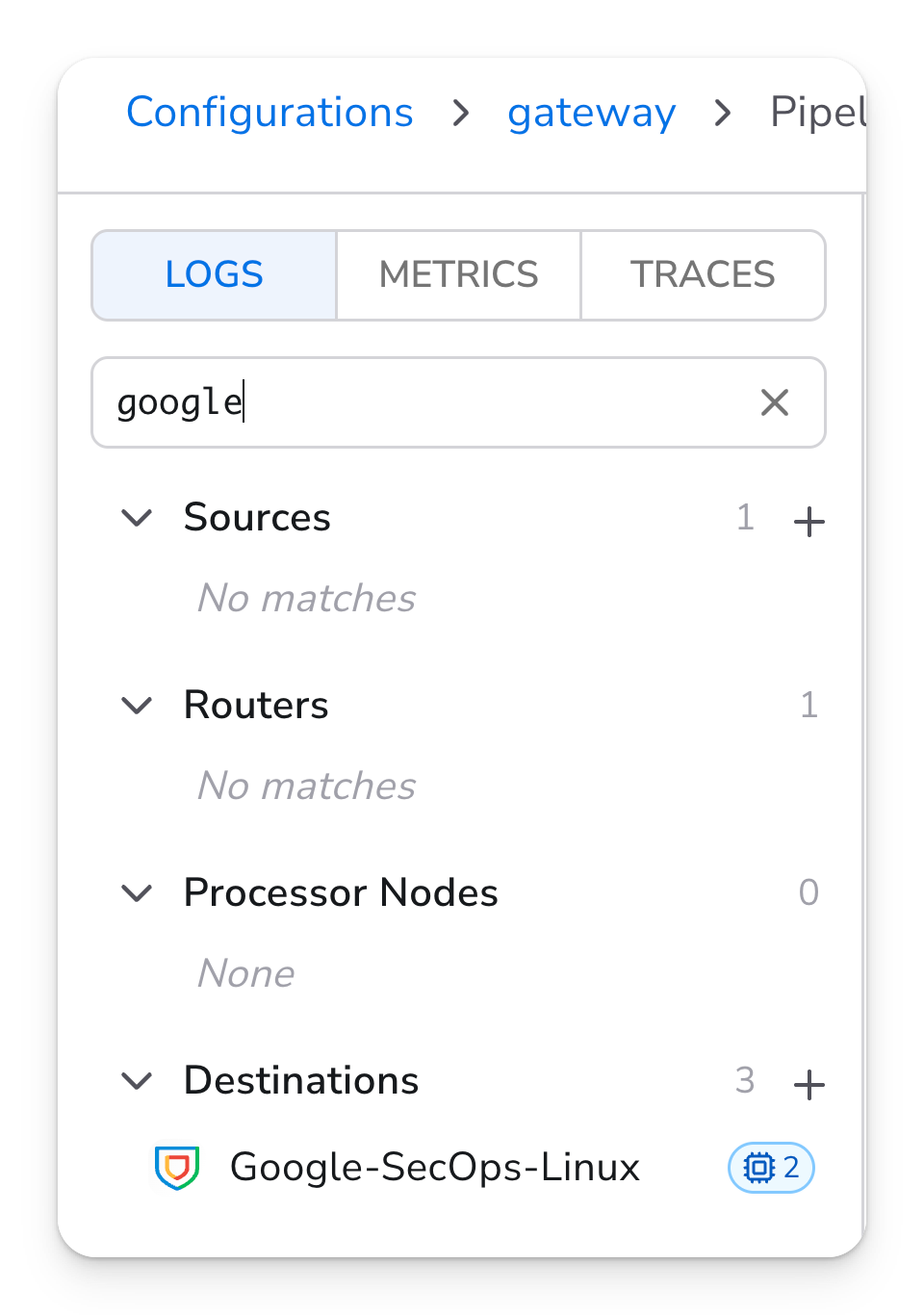
### Searching the Component List

1. Open the **sidebar** in the pipeline editor.
2. Type in the **search field** to filter the full component list, including sources, processors, routers, and destinations.
3. Select a component from the results to jump to it on the canvas.

<figure><img src="/files/2oyuwLYUfSO41PuRoJFZ" alt="Bindplane docs - Advanced Pipeline Editor - searchable component sidebar"><figcaption><p>Search the full component list from the sidebar and jump to a component on the canvas.</p></figcaption></figure>

Search matches against the components in the current configuration, so you can locate a node by name without knowing where it sits in the topology.

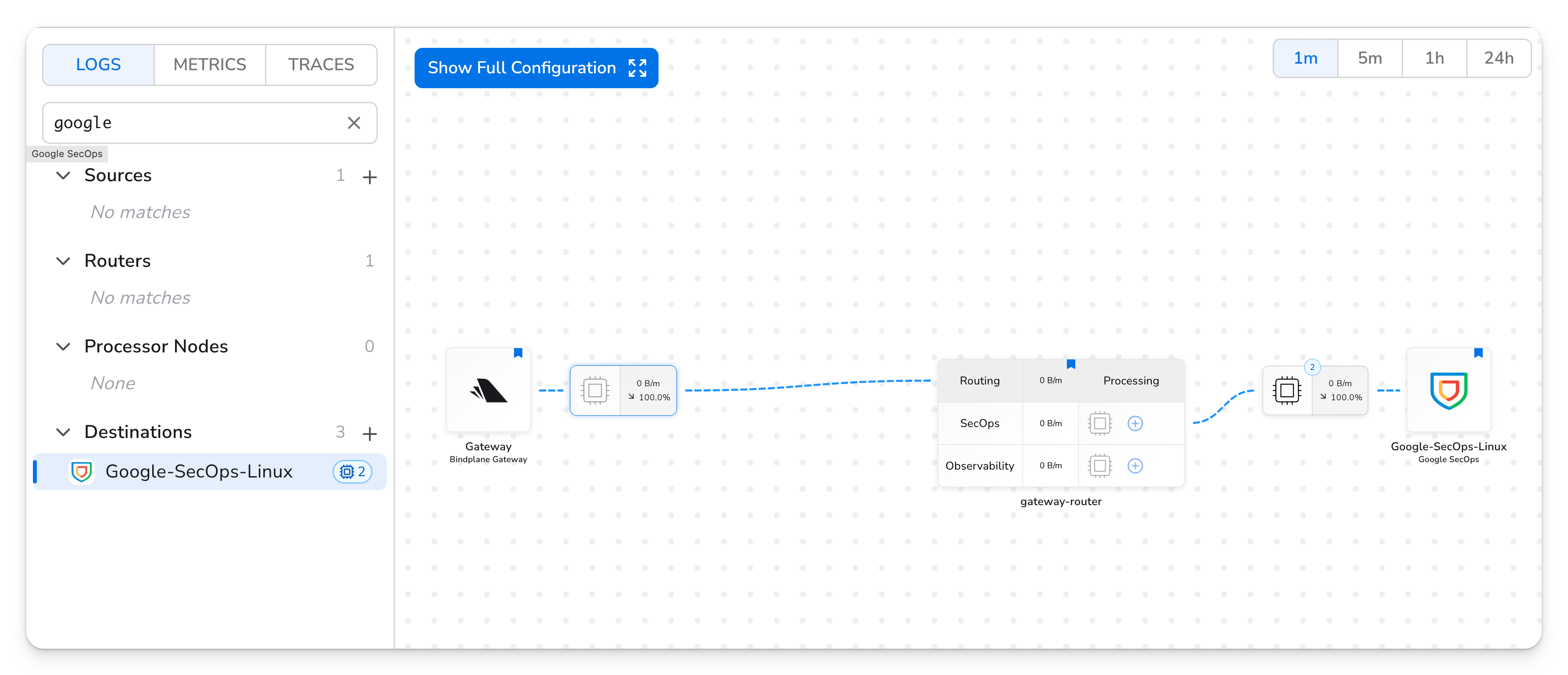
### Filtering the View to a Single Component

1. Select a component on the canvas or from the sidebar.
2. Apply the **filter** to reduce the view to that component and its routes.
3. The canvas now shows only the selected component and the paths connected to it, hiding unrelated branches.
4. Clear the filter to return to the full pipeline view.

<figure><img src="/files/65N4VJkFJJuwOdIBfhi3" alt="Bindplane docs - Advanced Pipeline Editor - view filtered to a single component and its routes"><figcaption><p>The view filtered to a single component and its connected routes.</p></figcaption></figure>

{% hint style="info" %}
**NOTE**

Filtering does not change the configuration. It only changes what is displayed, so you can inspect one data path in isolation while the rest of the pipeline continues to run as configured.
{% endhint %}

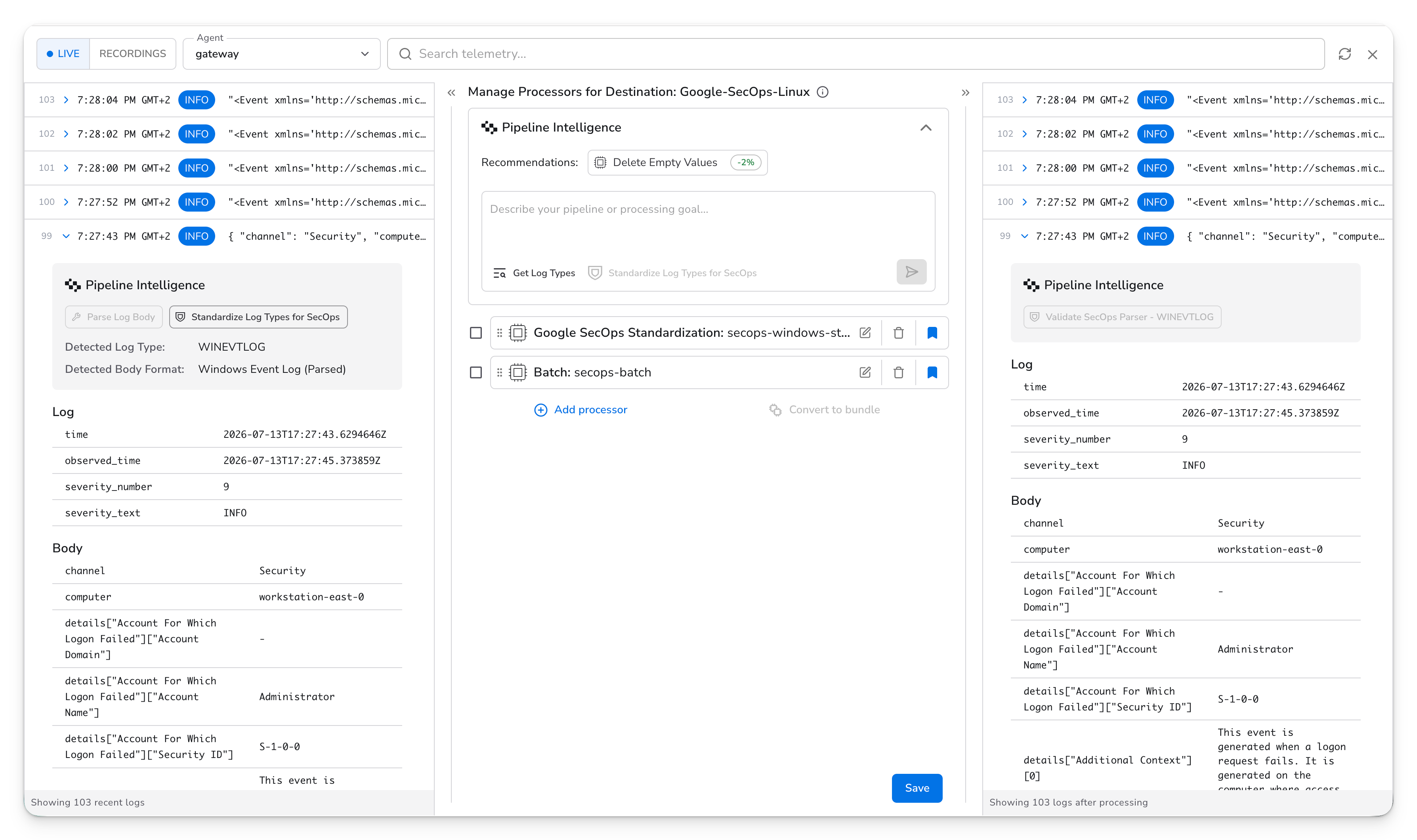
### Embedding Processors in Routing Nodes

Previously, processing that applied to a single branch of a route lived in a separate processor node placed after the route. With the Advanced Pipeline Editor, you can embed processors directly in the routing node itself.

1. Click into a **routing node** in your pipeline.
2. Add one or more **processors** to a specific route within the node.
3. Save the configuration and roll it out to your collectors as usual.

<figure><img src="/files/Sz85ovL7xuYsNlIm9kbp" alt="Bindplane docs - Advanced Pipeline Editor - processors embedded in a routing node"><figcaption><p>Processors embedded directly in a route within a routing node.</p></figcaption></figure>

Telemetry matching that route is processed by the embedded processors before continuing downstream. Branch-specific logic (for example, redacting fields only on the branch headed to a third-party destination, or sampling only the branch headed to long-term storage) is now defined in the same place the branch is defined, which keeps the topology flatter and easier to read.

### Use Cases in Depth

#### Debugging Routing Behavior

When telemetry is not arriving at the destination you expect:

1. Search the sidebar for the destination component and jump to it.
2. Filter the view to that destination and its routes to see every path feeding it.
3. Walk each path back to its source, checking route conditions and any embedded processors along the way.

#### Reviewing a Large Configuration Change

Before rolling out a change to a configuration with many components:

1. Re-center to get the full topology in view and confirm the overall shape is what you expect.
2. Filter down to the components you changed to verify their routes and embedded processors in isolation.
3. Roll out the configuration once the isolated view matches the intended behavior.

#### Consolidating Branch-Specific Processing

If your pipeline has standalone processor nodes that exist only to transform a single branch:

1. Identify processor nodes that sit immediately after a route and apply to one branch only.
2. Recreate those processors as embedded processors inside the routing node.
3. Remove the standalone nodes to flatten the topology.

### Relationship to Other Features

| Feature                                                                       | Purpose                                                                                  |
| ----------------------------------------------------------------------------- | ---------------------------------------------------------------------------------------- |
| Standard pipeline view                                                        | View and edit pipeline topology in a fixed layout                                        |
| Advanced Pipeline Editor                                                      | Navigate, search, and filter large configurations, and embed processors in routing nodes |
| [Live Preview](/feature-guides/data-management/live-preview.md)               | Apply processors to snapshot or recording data in real time before committing changes    |
| [Snapshot Recordings](/feature-guides/data-management/snapshot-recordings.md) | Capture and persist a telemetry sample for replay across sessions                        |

### Limitations

* The Advanced Pipeline Editor is available to paid organizations and is rolling out now, so it may not yet be enabled for your org.
* Filtering changes only what is displayed. It does not pause, reroute, or otherwise modify the running pipeline.
* Embedded processors apply only to the route they are attached to. Processing that should apply to all branches still belongs in a shared processor node before the route.


---

# Agent Instructions
This documentation is published with GitBook. GitBook is the documentation platform designed so that both humans and AI agents can read, navigate, and reason over technical content effectively. Learn more at gitbook.com.

## Querying This Documentation
If you need additional information that is not directly available in this page, you can query the documentation dynamically by asking a question.

Perform an HTTP GET request on the current page URL with the `ask` query parameter, and the optional `goal` query parameter:

```
GET https://docs.bindplane.com/feature-guides/ui-and-navigation/advanced-pipeline-editor.md?ask=<question>&goal=<endgoal>
```

`ask` is the immediate question: it should be specific, self-contained, and written in natural language.
`goal` is optional and describes the broader end goal you are ultimately trying to accomplish on behalf of the user. GitBook uses it to tailor the answer towards what is most useful for that goal.

The response will contain a direct answer to the question and relevant excerpts and sources from the documentation.

Use this mechanism when the answer is not explicitly present in the current page, you need clarification or additional context, or you want to retrieve related documentation sections.