> For the complete documentation index, see [llms.txt](https://docs.bindplane.com/llms.txt). Markdown versions of documentation pages are available by appending `.md` to page URLs; this page is available as [Markdown](https://docs.bindplane.com/feature-guides/pipeline-intelligence/inspect-telemetry.md).
# Inspect Telemetry
Pipeline Intelligence features in the snapshot row view: detect log type and format, get log types, parse fields, standardize for SecOps, and validate parsers.
Within the expanded snapshot row view, there are several helpful Pipeline Intelligence features for logs. When expanding the row, Pipeline Intelligence will automatically detect the log's log type and body format. Actions will appear for parsing or standardization, if needed.
## Get Log Types
Automatically identify log types from your log snapshot data.
{% hint style="info" %}
Get Log Types is only available for Enterprise, Bindplane Enterprise (Google Edition), and Honeycomb licenses.
{% endhint %}
### How it works:
1. Click "Get Log Types" from the Pipeline Intelligence panel
2. Pipeline Intelligence will begin to analyze and stream output of generated log types.
3. Log types are automatically identified and displayed as chips in the snapshot console.
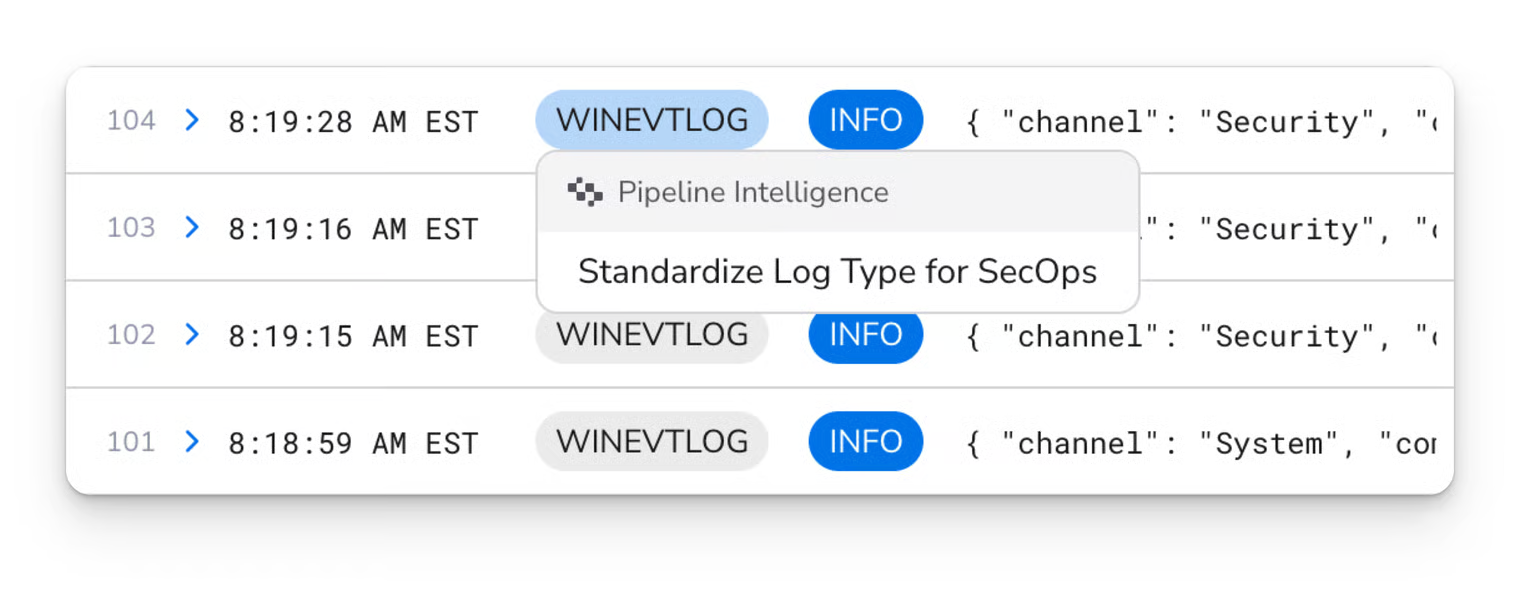
4. You can click on any log type chip to bring up additional actions to take on that log type.
## Standardize Log Type for SecOps
Automatically generate a Google SecOps standardization processor for specific log types.
{% hint style="info" %}
Automatically standardizing log type for SecOps is only available for Enterprise, Bindplane Enterprise (Google Edition), and Honeycomb licenses.
{% endhint %}
### How it works:
1. Click into a processor node that has a Google SecOps source connected to it.
2. Generate log types for the snapshot (steps shown [above](#get-log-types)).
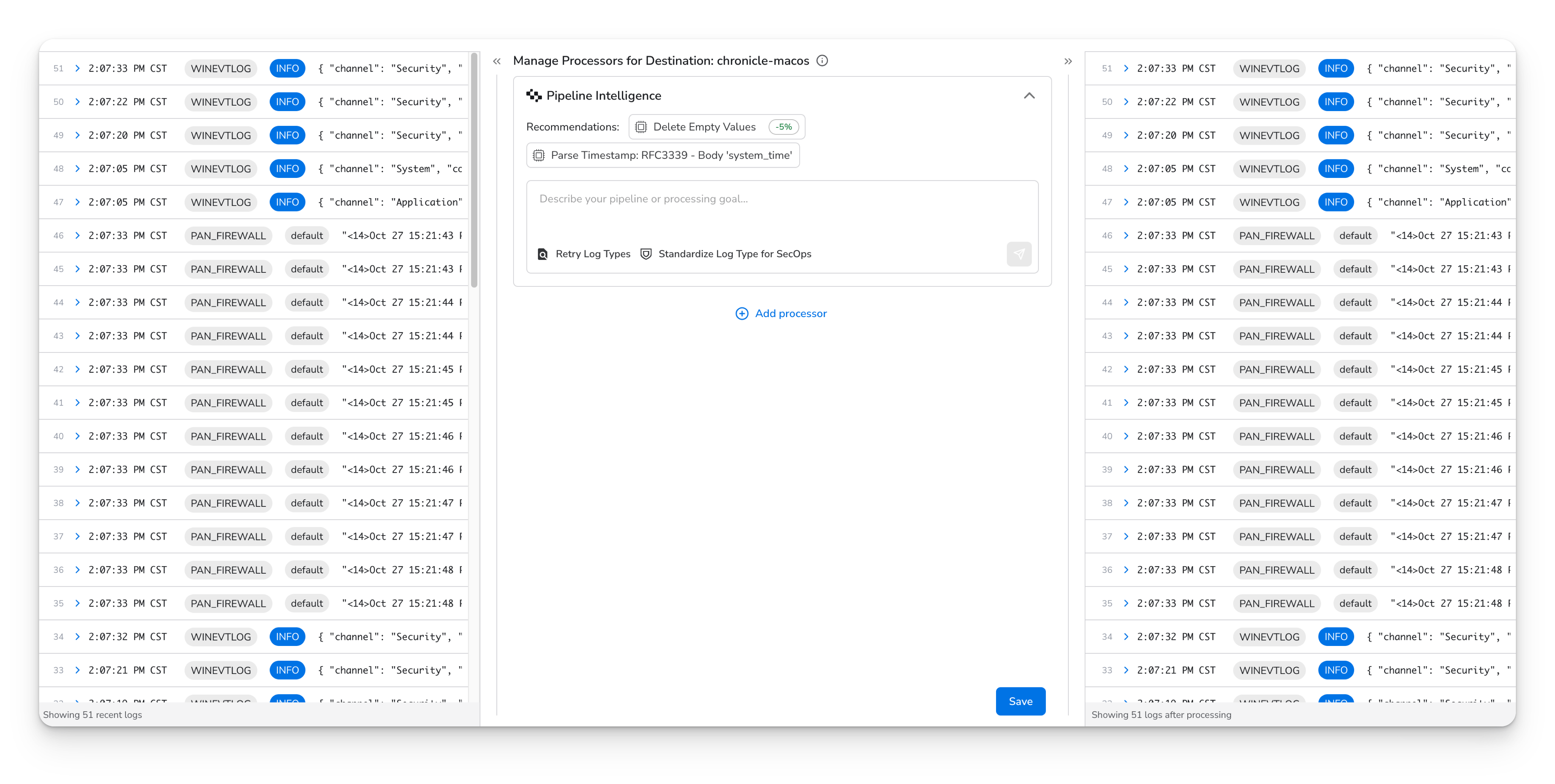
3. After generating log types, Pipeline Intelligence will recommend a new action: "Standardize Log Type for SecOps".
4. Select a log type from the drop down (or choose "All Log Types" to standardize multiple types)
5. Click "Generate" to create the standardization processor with the appropriate log type and conditional statement
## Validate SecOps Parser
The Validate SecOps Parser action lets you quickly confirm that your logs will be parsed correctly when ingested to Google SecOps. A dropdown displays immediate feedback, such as parsed events or validation errors, without waiting for data to appear in Google SecOps.
### **How it works:**
1. Expand a log in the snapshot view of a pipeline sending telemetry to a Google SecOps destination.
2. Click "Validate SecOps Parser" on the right side of the expanded row (see the Snapshot View screenshot above) to validate a SecOps parser for the detected log type.
3. Review the dropdown for parsed events or validation errors.
{% hint style="info" %}
Validate SecOps Parser requires a connected [Google SecOps Integration](/feature-guides/partner-integrations/google-secops.md) in your Bindplane project.
{% endhint %}
---
# Agent Instructions
This documentation is published with GitBook. GitBook is the documentation platform designed so that both humans and AI agents can read, navigate, and reason over technical content effectively. Learn more at gitbook.com.
## Querying This Documentation
If you need additional information that is not directly available in this page, you can query the documentation by asking a question.
Perform an HTTP GET request on the following URL with the `ask` and `goal` query parameters:
```
GET https://docs.bindplane.com/feature-guides/pipeline-intelligence/inspect-telemetry.md?ask=&goal=
```
`ask` is the immediate question: it should be specific, self-contained, and written in natural language.
`goal` is what the user is ultimately trying to achieve, the reason they need the answer. Sharing it helps GitBook give you a better, more relevant answer. A goal is most helpful when it describes the outcome the user wants rather than restating the question. For example, with `ask=how do I create an API token`, a goal like `automate deployments from our CI pipeline` lets GitBook tailor the answer to that use case.
The response will contain a direct answer to the question and relevant excerpts and sources from the documentation.
Use this mechanism when the answer is not explicitly present in the current page, you need clarification or additional context, or you want to retrieve related documentation sections.