> For the complete documentation index, see [llms.txt](https://docs.bindplane.com/llms.txt). Markdown versions of documentation pages are available by appending `.md` to page URLs; this page is available as [Markdown](https://docs.bindplane.com/feature-guides/pipeline-intelligence/generate-components.md).
# Generate Components
Use Pipeline Intelligence to generate parsers, processors, and other pipeline components from natural language, regex, or snapshot-based recommendation.
## Generate Parsers
{% hint style="info" %}
Automatically generating parsers is only available for Enterprise, Bindplane Enterprise (Google Edition), and Honeycomb licenses.
{% endhint %}
### Parse Field
Automatically create parsing processors to extract structured data from input fields.
#### How it works:
1. Specify a Source Field Type and Source Field (leave empty to use the body).
2. Click "Generate with Pipeline Intelligence"
3. Pipeline Intelligence will generate a regex to parse the specified field.
### Parse with Regex
The Parse with Regex processor contains a "Generate with Pipeline Intelligence" button. This button behaves similar to Parse Field, but solely focuses on creating a regular expression.
#### How it works:
1. In the snapshot console, click on any log body, attribute, or resource field.
2. Select "Parse Field" from the Pipeline Intelligence menu
3. Review the field preview showing the data to be parsed
4. Click "Generate Parser" to create the appropriate parsing processor
5. Pipeline Intelligence detects the format of log (JSON, CSV, Key-Value, XML, other) and creates the corresponding processor to parse fields.
## Recommendations
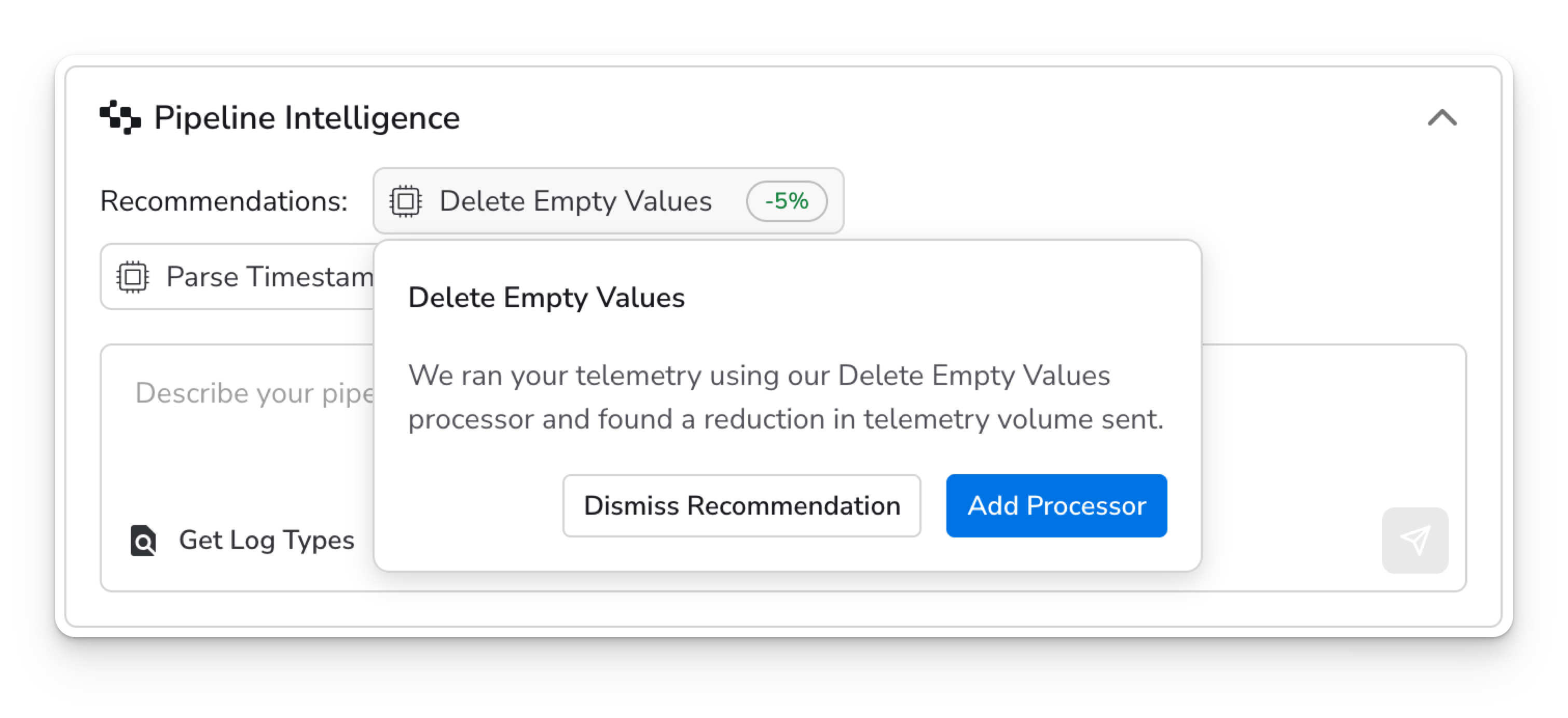
Pipeline Intelligence analyzes the data in your open snapshot view and surfaces context-aware recommendations to improve your pipeline. Each recommendation includes a description explaining why it was suggested and a preconfigured processor ready to apply.
Recommendations target things like adding necessary fields, removing redundant fields, and parsing unstructured data into useful attributes.
#### **How it works:**
1. Recommendations will automatically appear in the middle of the snapshot view.
2. Hover or click on a recommendatio to review the reasoning behind it.
3. Select "Add Processor" to add it to your pipeline, or dismiss it if it doesn't fit your use case.
4. Once a recommended processor has been added, you may inspect the preconfigured processor to confirm the field paths, conditions, and processor placement match your needs.
Always review recommendations before applying them to production pipelines. While Pipeline Intelligence is designed to produce accurate recommendations, it may make mistakes.
{% hint style="success" %}
Get recommendations based on continuous monitoring across all your pipeline data with [Global Pipeline Intelligence](/feature-guides/pipeline-intelligence/global-pipeline-intelligence.md).
{% endhint %}
## Generate with natural language
Describe what you want in plain English and let Pipeline Intelligence generate it for you.
{% hint style="info" %}
Generating with natural language is only available for Enterprise, Bindplane Enterprise (Google Edition), and Honeycomb licenses.
{% endhint %}
### Generate Processors
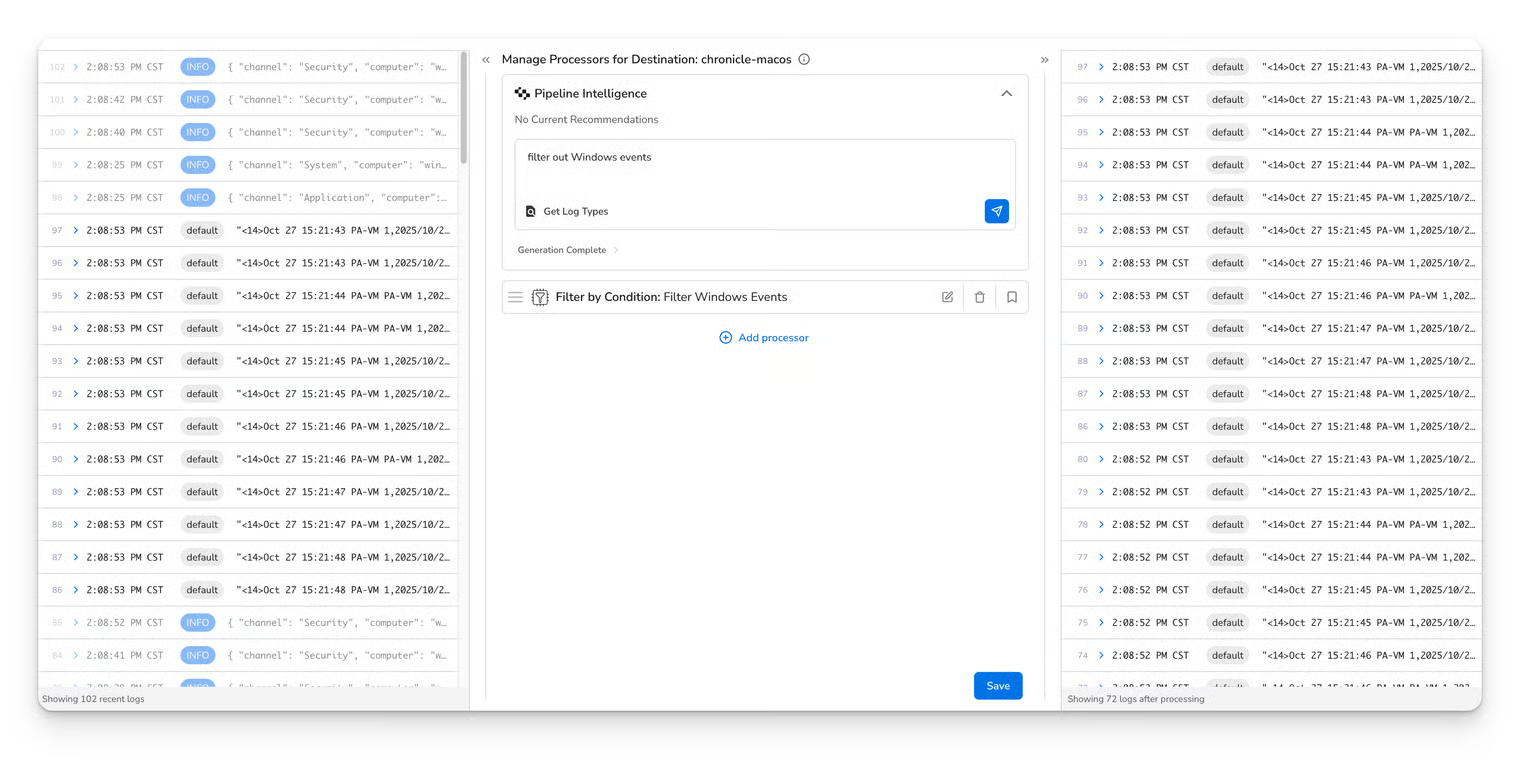
Describe the processing you want and Pipeline Intelligence creates the processor for you.
#### How it works:
1. Enter a description in the Pipeline Intelligence input field
1. Examples:
1. "Filter my logs to only let Windows Events through"
2. "Batch my logs to send to Google SecOps"
3. "Create a new attribute to keep track of the host name."
4. "Parse JSON logs and extract the user\_id field"
2. Click "Generate"
3. Pipeline Intelligence will analyze your pipeline and create processors to accomplish your goal.
4. Processors are automatically added to your pipeline. You may modify or delete the generated processors.
### Generate Windows Events XML Query
When configuring a Windows Event Log source, Pipeline Intelligence can generate the XML filter query for you.
#### How it works:
1. Enter a description in the Pipeline Intelligence input field
1. Examples:
1. "Failed login attempts in the last 24 hours"
2. "Sysmon process creation events"
3. "Privileged or administrator logons"
4. "Unexpected shutdowns and reboots"
2. Click "Generate"
3. Pipeline Intelligence generates an XML query to match your request, along with a short description of what it does. You may review and modify the query before applying.
---
# Agent Instructions
This documentation is published with GitBook. GitBook is the documentation platform designed so that both humans and AI agents can read, navigate, and reason over technical content effectively. Learn more at gitbook.com.
## Querying This Documentation
If you need additional information that is not directly available in this page, you can query the documentation by asking a question.
Perform an HTTP GET request on the following URL with the `ask` and `goal` query parameters:
```
GET https://docs.bindplane.com/feature-guides/pipeline-intelligence/generate-components.md?ask=&goal=
```
`ask` is the immediate question: it should be specific, self-contained, and written in natural language.
`goal` is what the user is ultimately trying to achieve, the reason they need the answer. Sharing it helps GitBook give you a better, more relevant answer. A goal is most helpful when it describes the outcome the user wants rather than restating the question. For example, with `ask=how do I create an API token`, a goal like `automate deployments from our CI pipeline` lets GitBook tailor the answer to that use case.
The response will contain a direct answer to the question and relevant excerpts and sources from the documentation.
Use this mechanism when the answer is not explicitly present in the current page, you need clarification or additional context, or you want to retrieve related documentation sections.