> For the complete documentation index, see [llms.txt](https://docs.bindplane.com/llms.txt). Markdown versions of documentation pages are available by appending `.md` to page URLs; this page is available as [Markdown](https://docs.bindplane.com/deployment/google-marketplace.md).
# Google Marketplace
Bindplane Enterprise Edition can be deployed from the Google Marketplace
This guide will walk you through deploying Bindplane Enterprise on a GCE instance using the Google Cloud Deployment Manager.
## Deploying and Configuring Bindplane Enterprise
Navigate to Bindplane Enterprise offering in the Google Marketplace [here](https://console.cloud.google.com/marketplace/product/bluemedora/bindplane-enterprise-edition). From the Overview tab, click ‘Launch’ to start configuring your deployment.
{% hint style="info" %}
**NOTE**
Bindplane Enterprise requires an Enterprise license. Contact the [sales team](mailto:sales@bindplane.com) for more information.
{% endhint %}
### Configure your Deployment
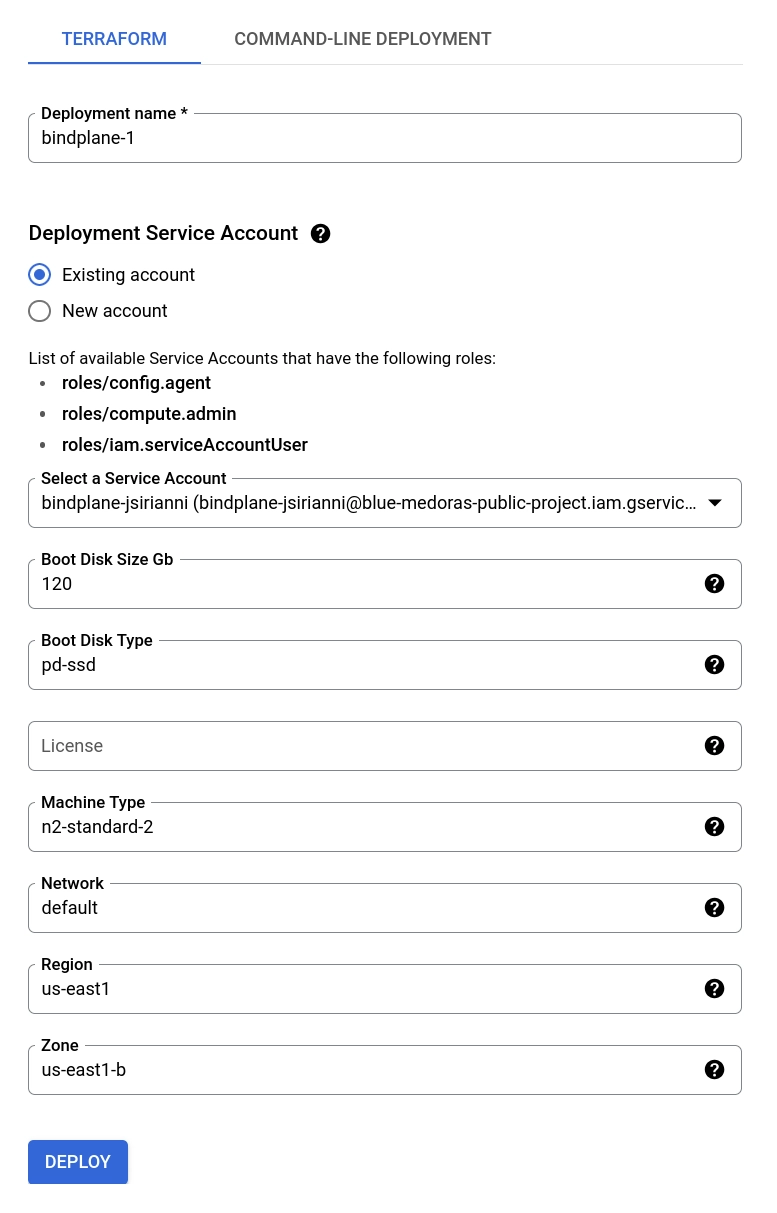
From the New Bindplane Enterprise deployment page, provide a friendly Deployment name. Modify any other settings as needed. The license key recommended but not required. After the deployment is created, you will need to configure the license key on the instance if not provided here.
### Deploy the Bindplane Enterprise Image
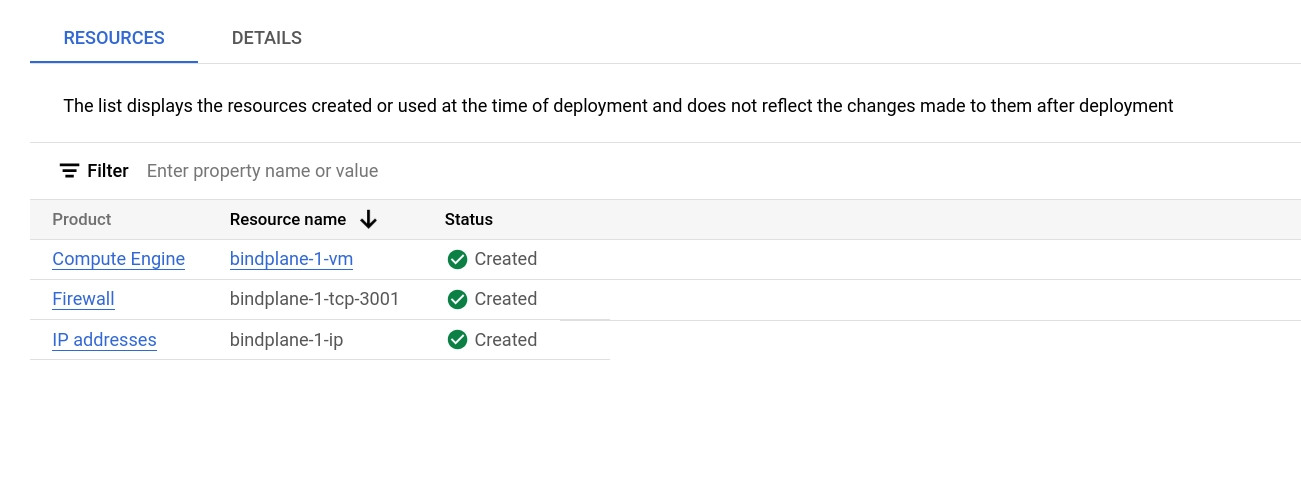
Deploy the image with the deploy button. This will kick off the deployment using Terraform, automatically within Google Cloud Marketplace. A typical Bindplane Enterprise deployment takes about 5 minutes.
### Accessing Bindplane Enterprise
* **License Configuration**: If a license was not provided during deployment, SSH into the machine and execute the following command:\
`sudo BINDPLANE_CONFIG_HOME=/var/lib/bindplane /usr/local/bin/bindplane init license --config /etc/bindplane/config.yaml`.\
Confirm the restart prompt by selecting 'yes' at the end of the command.
* **Service Management**: For those who have already provided a license, enable and start the Bindplane service via SSH with these commands:\
`sudo systemctl enable bindplane`\
`sudo systemctl start bindplane`
* **Firewall Settings**: To enhance security, adjust the firewall rules by navigating to VPC Network and selecting Firewall.
* **Password Retrieval**: Access the password by checking the `auth.password` field in the `/etc/bindplane/config.yaml` file.
* **Web Interface Access**: Log into the Bindplane web interface by entering the instance's public IP address followed by port 3001 in your browser. Use the username `admin` and the password obtained from the configuration file.
After completing these steps, the Bindplane interface will be accessible with the configured ports. For further instructions, proceed with our Quickstart guide, starting at [Step 2 for Accessing the Bindplane UI](/readme/access-bindplane-ui.md).
---
# Agent Instructions
This documentation is published with GitBook. GitBook is the documentation platform designed so that both humans and AI agents can read, navigate, and reason over technical content effectively. Learn more at gitbook.com.
## Querying This Documentation
If you need additional information that is not directly available in this page, you can query the documentation by asking a question.
Perform an HTTP GET request on the following URL with the `ask` and `goal` query parameters:
```
GET https://docs.bindplane.com/deployment/google-marketplace.md?ask=&goal=
```
`ask` is the immediate question: it should be specific, self-contained, and written in natural language.
`goal` is what the user is ultimately trying to achieve, the reason they need the answer. Sharing it helps GitBook give you a better, more relevant answer. A goal is most helpful when it describes the outcome the user wants rather than restating the question. For example, with `ask=how do I create an API token`, a goal like `automate deployments from our CI pipeline` lets GitBook tailor the answer to that use case.
The response will contain a direct answer to the question and relevant excerpts and sources from the documentation.
Use this mechanism when the answer is not explicitly present in the current page, you need clarification or additional context, or you want to retrieve related documentation sections.